Help Center Billing
Take card payments with Square
Connect your own Square account to ChiroApp to charge saved cards, use a Square Terminal, send pay links and refund card payments.
ChiroApp takes card payments through your practice's own Square account: the client's card is charged in your Square account and the money goes to your Square balance, not to ChiroApp. You connect the account once from Setup, and only the practice owner can do that. ChiroApp sends Square only what a payment needs: the amount and a note that reads "ChiroApp invoice #" followed by the end of the invoice number. It sends no client names, services or visit details with a payment. To find a client's saved cards, ChiroApp looks the client up in your Square account by email or phone, and you confirm each match. If a client is not in Square yet and you save a card for them, ChiroApp creates the Square customer with the client's name and their email or phone, and nothing else: no patient, visit, note or address. Your agreement with Square, and what Square does with its own data, are between your practice and Square.
In the menu, open Setup.
On a phone On a phone, tap the menu button (three lines) at the top left first. Setup is near the bottom of the menu.
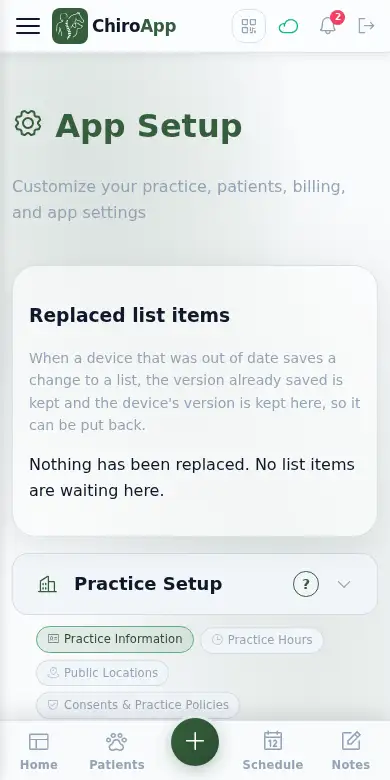
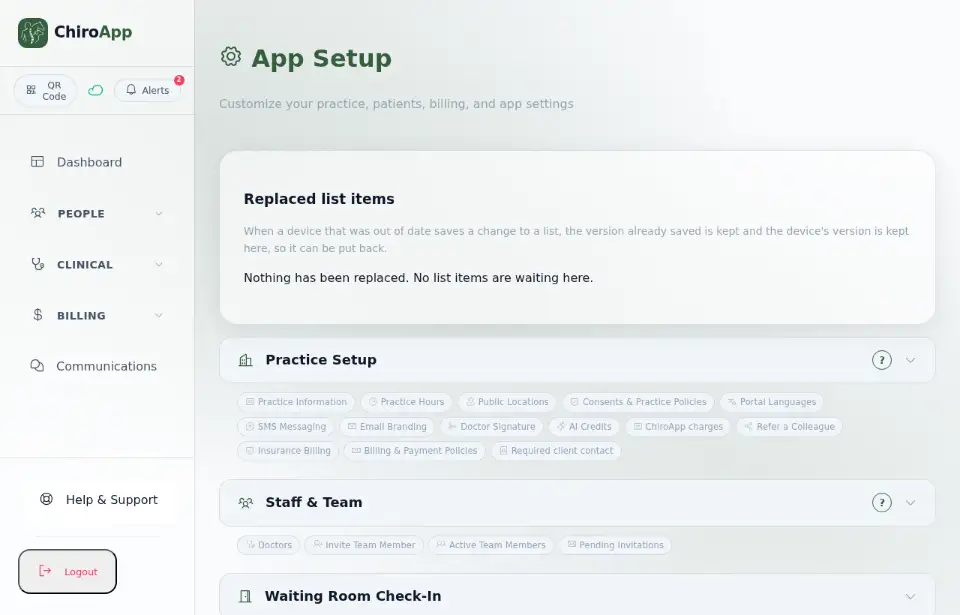
Open Payment Processing. The Square — Accept Payments card appears when Square is available for your practice. As the practice owner, press Connect Square: Square's own page opens, you sign in to your Square account and allow ChiroApp, and you come back to ChiroApp. If you don't have Square yet, the Sign up link beside it opens Square's sign-up page. The card also shows ChiroApp's fee on each Square payment, plus Square's own processing fee.
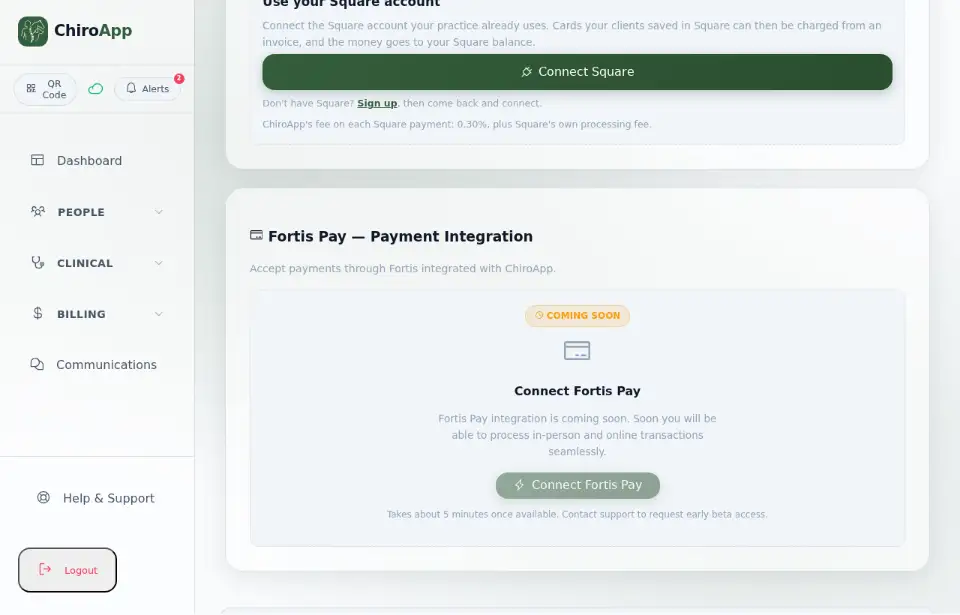
Once Square is connected, the card shows Square connected. Press Load locations and choose the Square location for payments, then under Take card payments with choose Square (or Stripe: you can switch back at any time). Press Find clients in Square to match your clients to the customers in your Square account by email or phone; for each match press Same person or Not them. To take a payment, press Pay on an invoice and choose Charge a saved card (Square) (pick the card and the amount), or Send to Square Terminal if a Terminal is paired. An invoice is marked paid only when Square confirms the payment, and pay links and the client portal open your own branded payment page where clients pay by card through Square. On a client's page, Add a card saves a card in Square after the client agrees (check the consent box); the card number goes to Square only, and ChiroApp keeps the card brand, last 4 digits and expiry. A card that is about to expire shows Expires soon and an expired card is not offered for a charge. To give a Square payment back, see Refund a payment. Disconnect Square stops ChiroApp charging your Square cards; payments already taken stay on their invoices.