Help Center Getting started
Take card payments (Stripe)
Connect Stripe so clients can pay invoices by card.
Card payments go through Stripe, straight to your bank account. You connect your own Stripe account once from Setup.
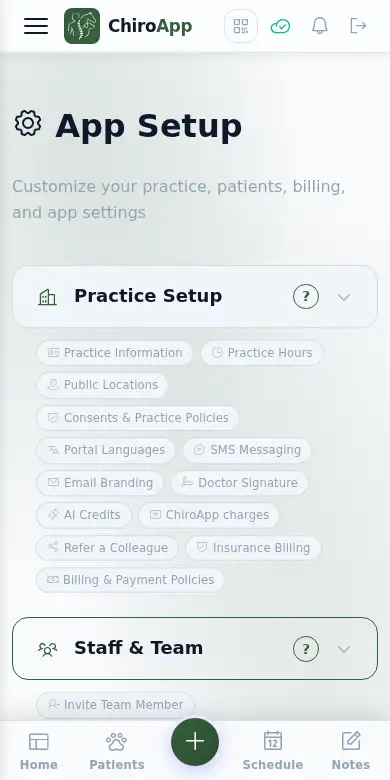
In the menu, open Setup.
On a phone On a phone, tap the menu button (three lines) at the top left first. Setup is near the bottom of the menu.
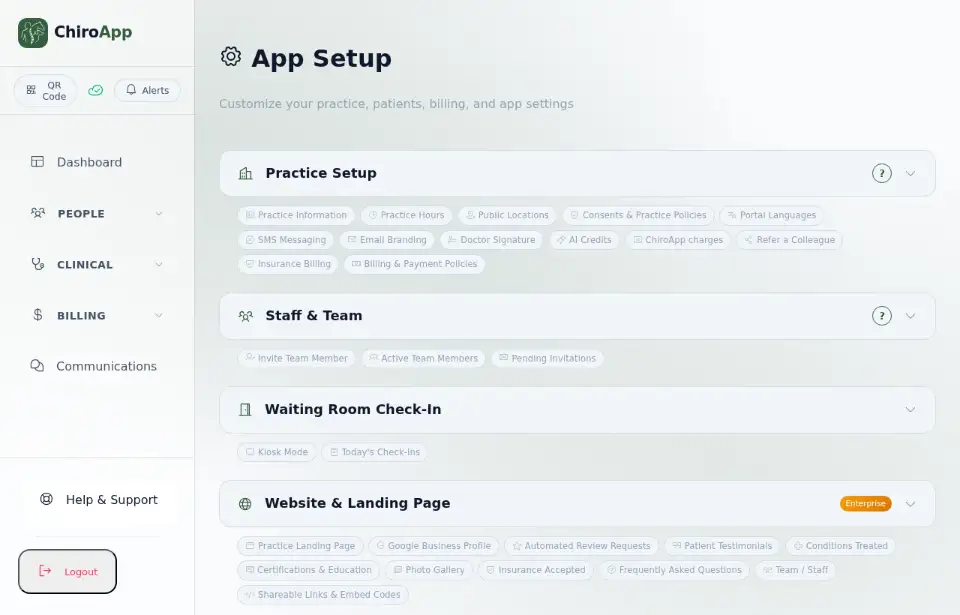
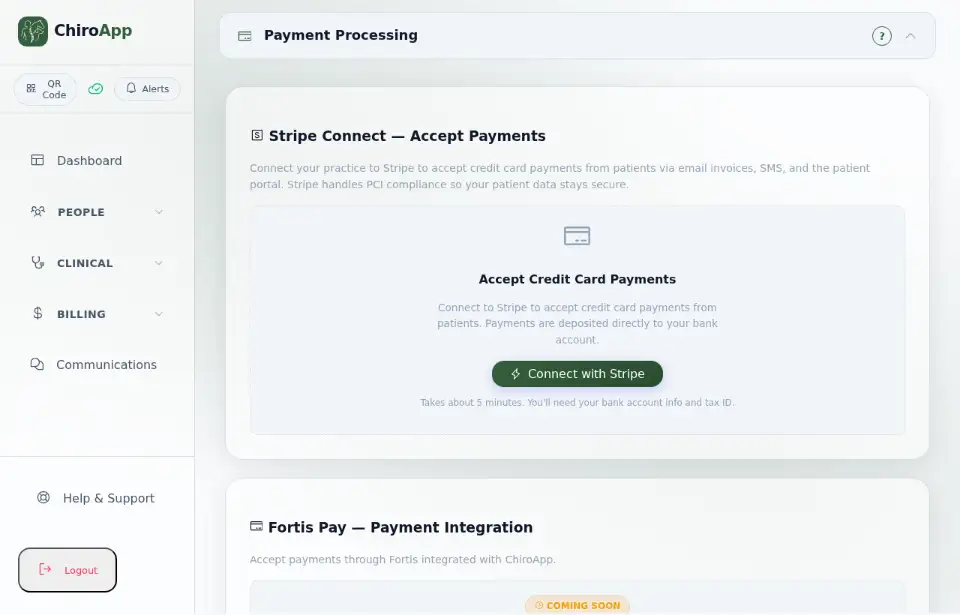
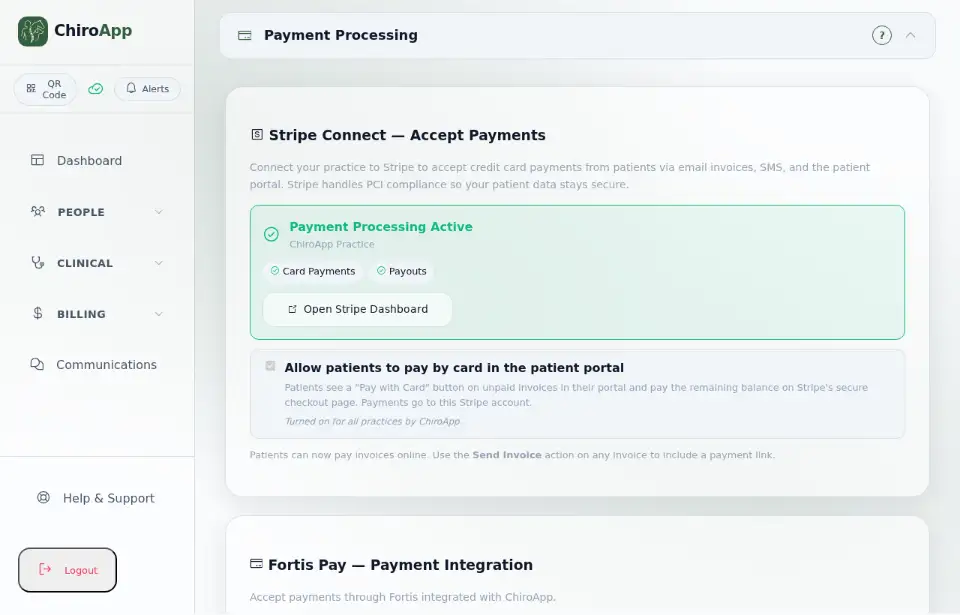
Open Payment Processing. In Stripe Connect — Accept Payments, press Connect with Stripe. Stripe's own pages then ask for your business, bank account and tax details (ChiroApp says this takes about 5 minutes).
When Stripe has approved your account, the card shows Payment Processing Active. Open Stripe Dashboard takes you to your Stripe account. Allow patients to pay by card in the patient portal controls the Pay with Card button in your patient portal.
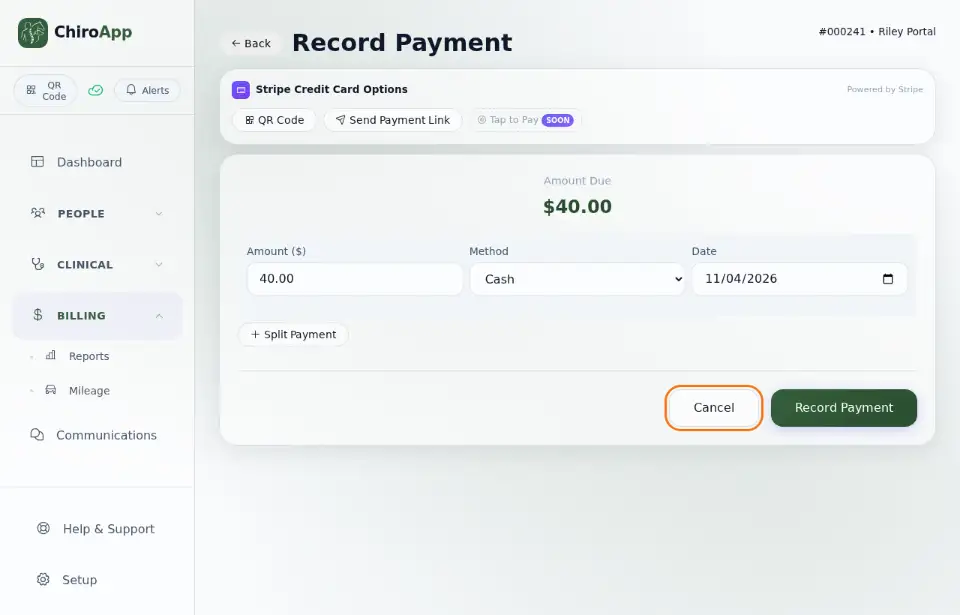
To take a card payment for an invoice, press Pay on the invoice: the Record Payment screen now offers QR Code (the client scans it and pays on their phone) and Send Payment Link.