Help Center Billing
Edit or delete an invoice
Add or change the lines on an invoice, or delete an invoice made by mistake.
You can change an invoice's lines after you create it, also after a payment. ChiroApp has no "void": an invoice made by mistake is deleted. A payment already recorded on an invoice can't be changed by editing it (see Correct a payment recorded by mistake). The example adds a forgotten service to a paid invoice.
In the menu, open Billing, then Invoices.
On a phone On a phone, tap the menu button (three lines) at the top left first.
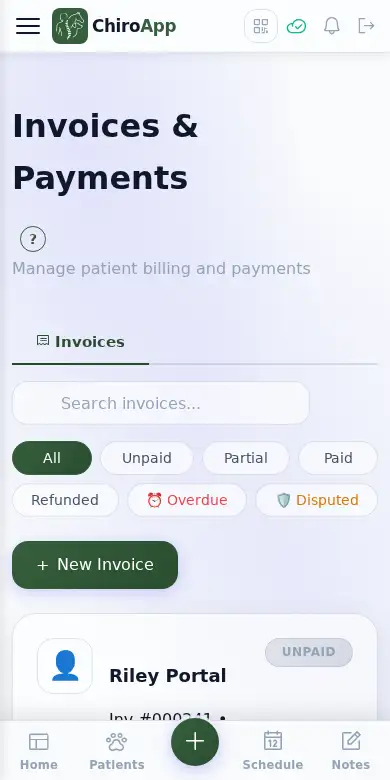
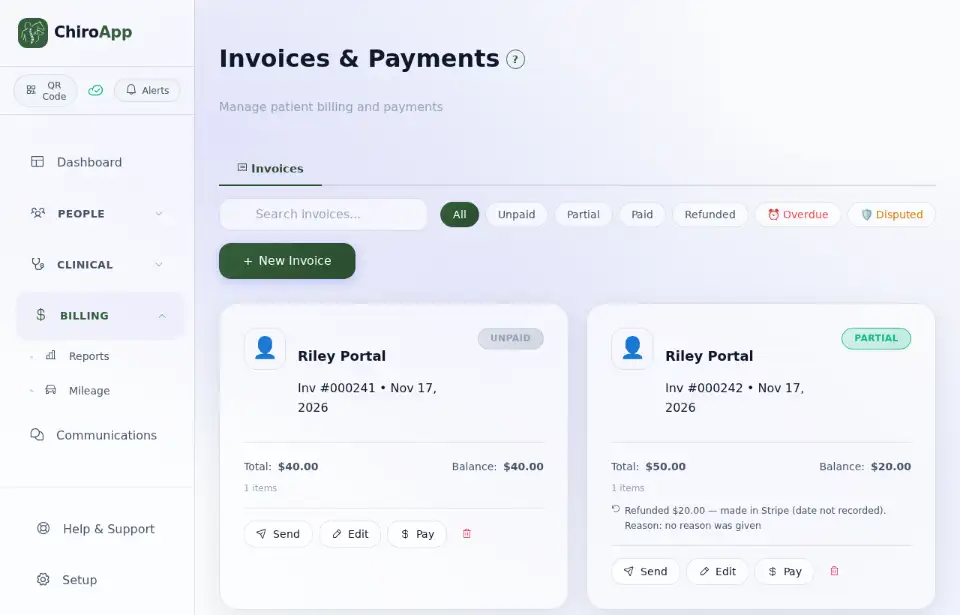
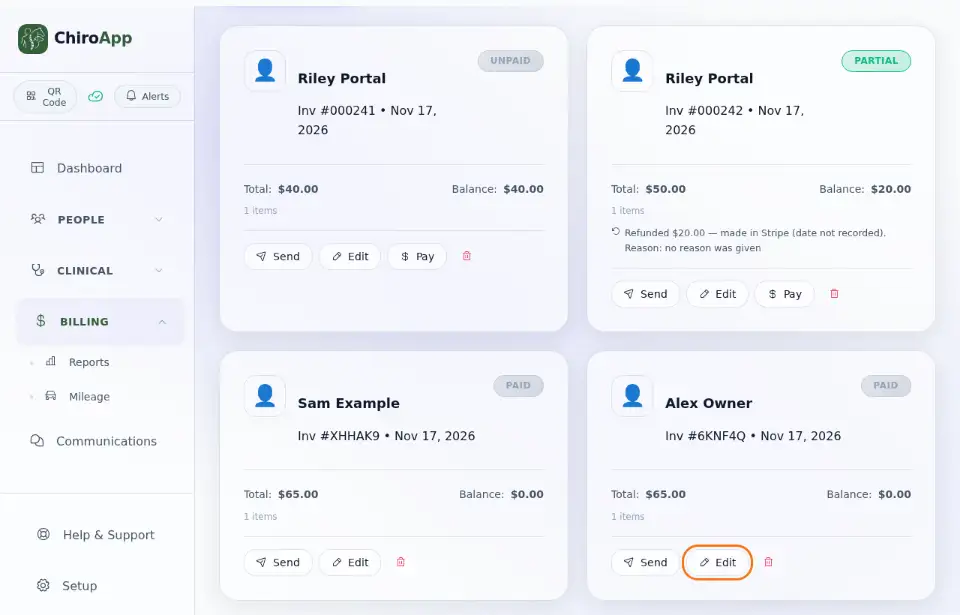
On the invoice, press Edit.
Under Line Items, change the Service / Product, the Patient or the Price of a line, or press + Add Item to add a line (the trash button on a line removes it). The total updates as you go.
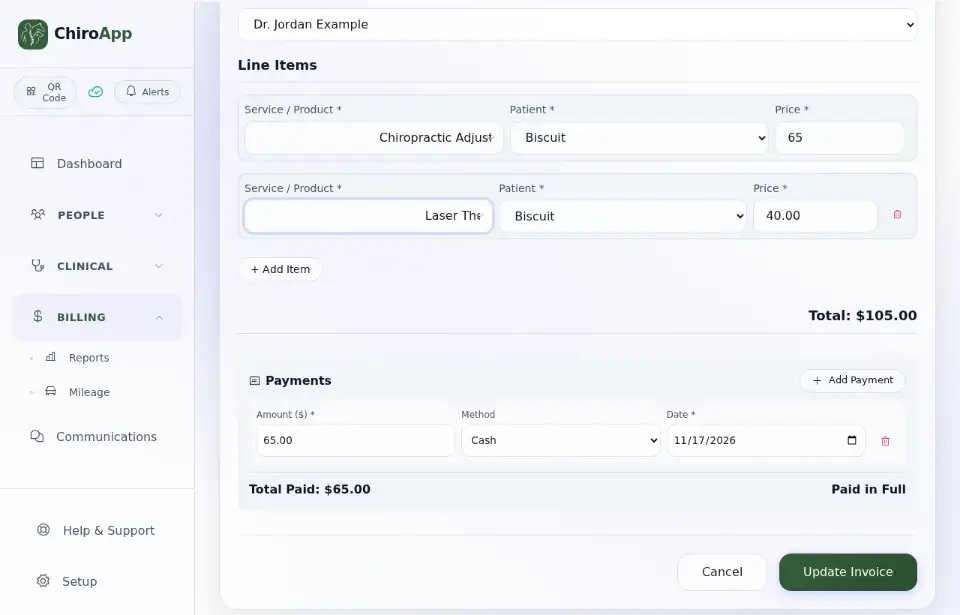
Press Update Invoice. The invoice shows its new Total and Balance: here the client now owes the $40 that was added. (If the list still shows the old total, open Invoices again from the menu.)
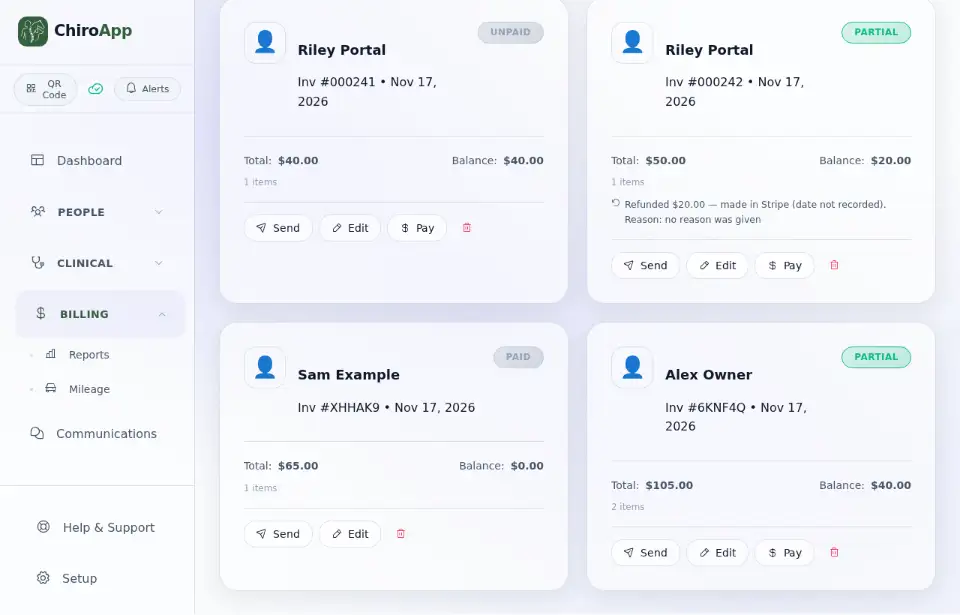
To delete an invoice, press it to open it and press Delete Invoice. ChiroApp shows what goes with it before anything is deleted: packages bought on the invoice are removed from the client's profile and products on it are put back into stock. An invoice with payments recorded in ChiroApp asks Delete Invoice and Payments? and lists them: they are deleted with it, as if they never existed, and no money goes back to the client. Press Delete Invoice and Payments (or Delete Invoice) to delete it, or Cancel to keep it.
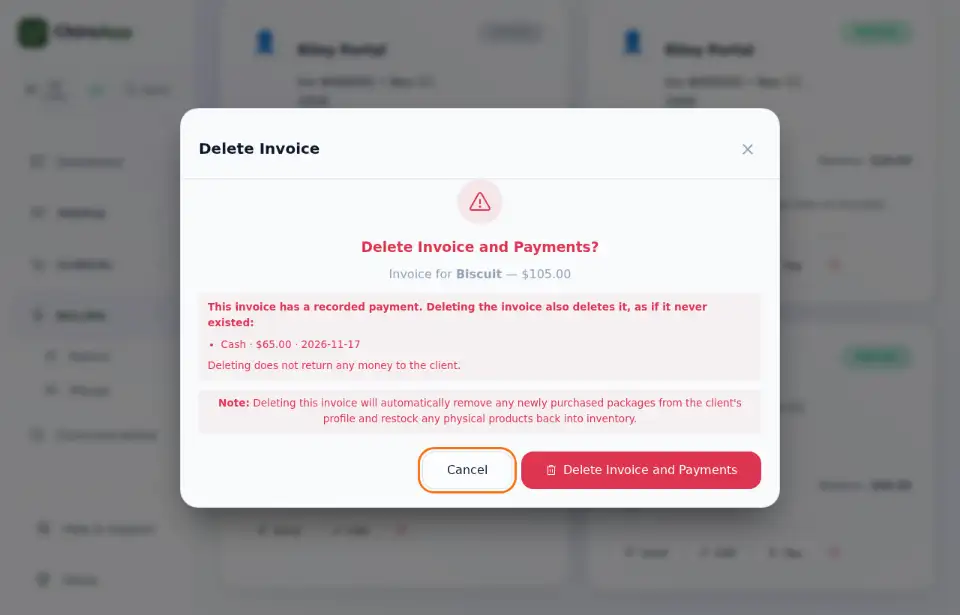
Only the practice owner and staff with the Manage Invoices permission can delete an invoice that has payments. An invoice paid by card through Stripe can't be deleted, and its charges can't be changed: refund the card payment in your Stripe dashboard (see Refund a payment) and bill an extra charge on a separate invoice. An invoice with payments can't be lowered below what was paid: refund the difference first.