Help Center Billing
Track and report mileage
See your business and personal trips, add one by hand, fix or delete a trip, and make a mileage report for your accountant.
The Mileage page keeps your trips for tax. It starts empty: ChiroApp's own empty page says trips are tracked automatically while the app is open, and you can always add a trip yourself. Each trip is Business, Personal or Unclassified, and the business miles give an estimated deduction at the IRS rate saved in ChiroApp. Mileage is only in the menu when your plan includes it; if you do not see it, Setup, then Subscription, shows the plans that include it.
In the menu, open Billing, then Mileage.
On a phone On a phone, tap the menu button (three lines) at the top left first.
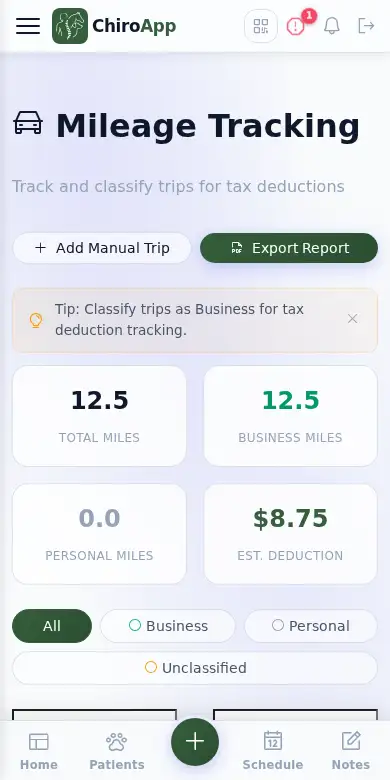
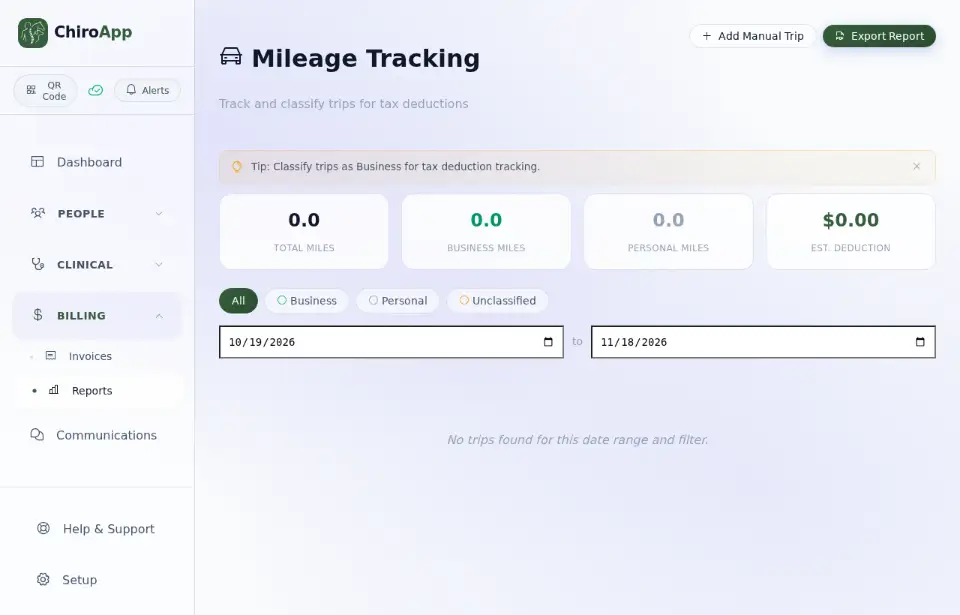
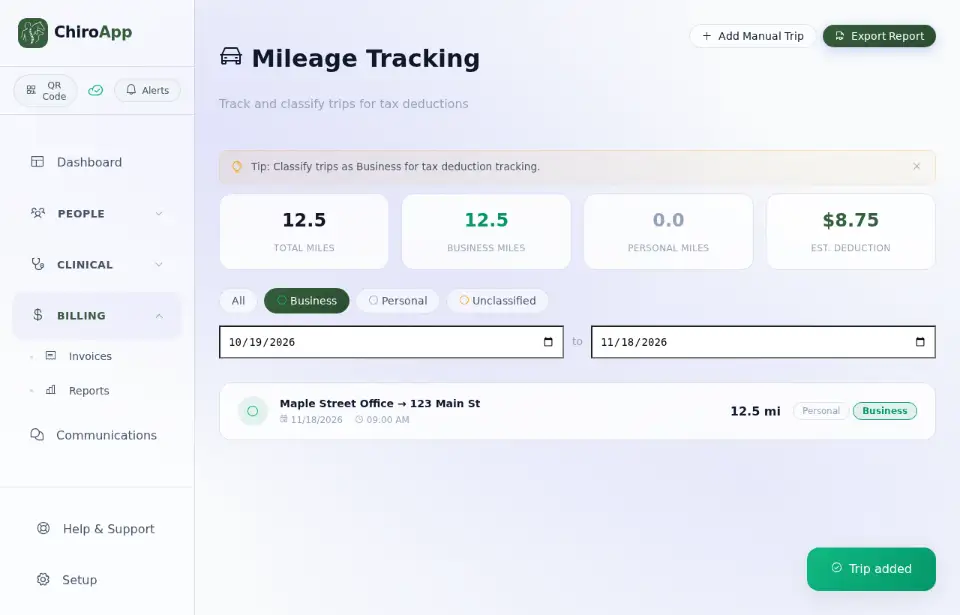
The top of the page shows Total Miles, Business Miles, Personal Miles and Est. Deduction for the dates chosen in the two date boxes. The buttons All, Business, Personal and Unclassified narrow the list to one kind of trip.
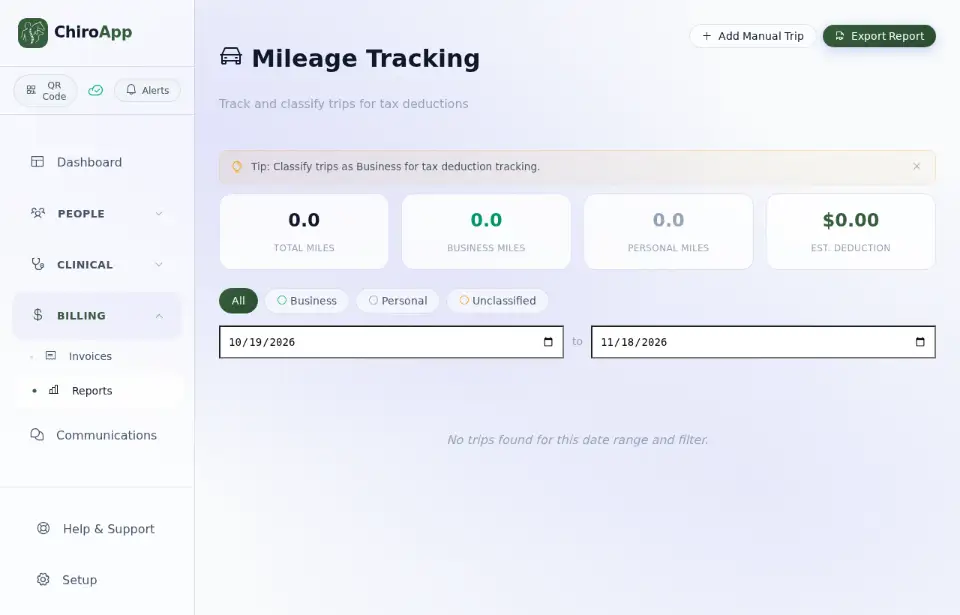
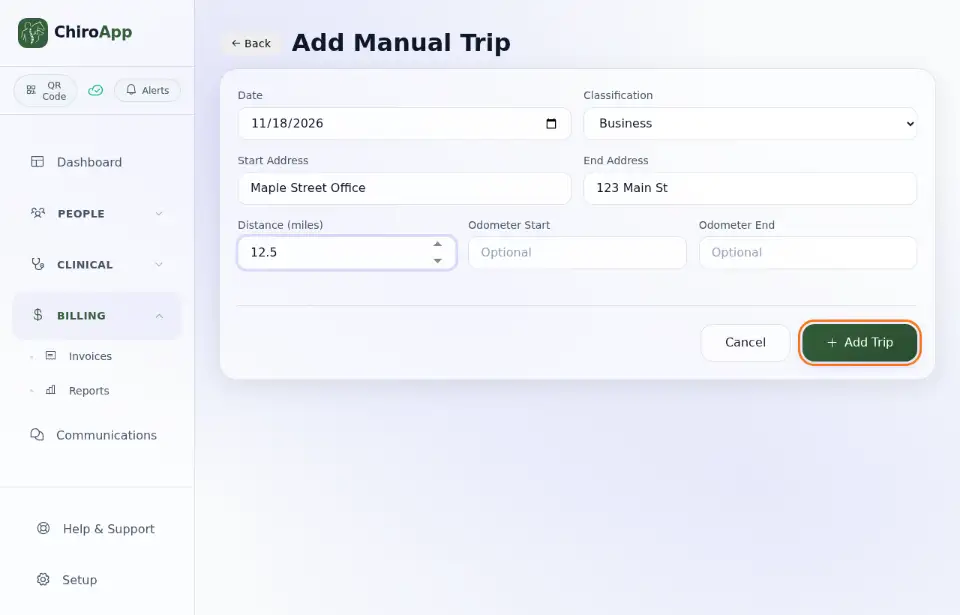
To add a trip ChiroApp did not record, press Add Manual Trip. Choose the Date and the Classification, type the Start Address, the End Address and the Distance (miles), and press Add Trip. Odometer Start and Odometer End are optional.
Press Business to show only the business trips. The new trip is in the list and the totals include it.
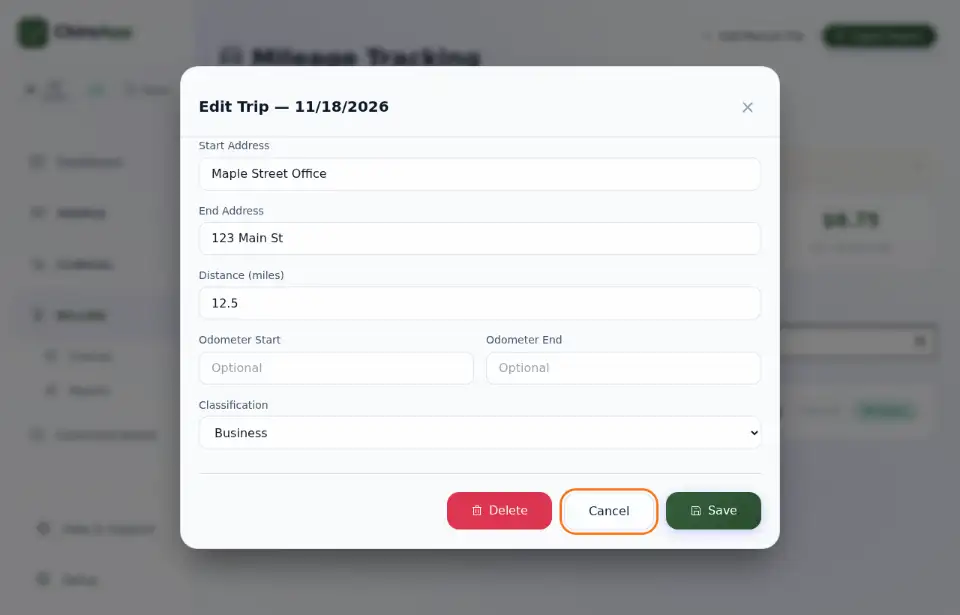
Press a trip to change it. In the window that opens, correct the Start Address, End Address, Distance (miles) or Classification and press Save; Delete removes the trip.
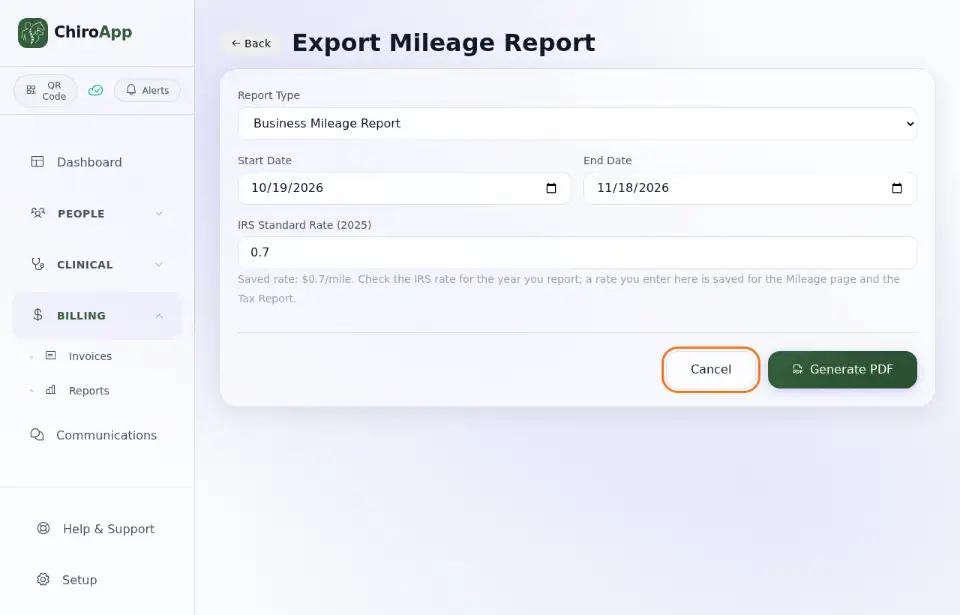
For your accountant, press Export Report. Choose the Report Type, the Start Date and End Date, check the IRS standard rate (the box named after the year) and press Generate PDF.