Help Center Billing
Charge sales tax
Turn on sales tax, set your rates, and choose what is taxed.
Sales tax is off until you turn it on. Turning it on or off never changes invoices that already exist: each invoice line keeps the rate it was billed at.
In the menu, open Setup.
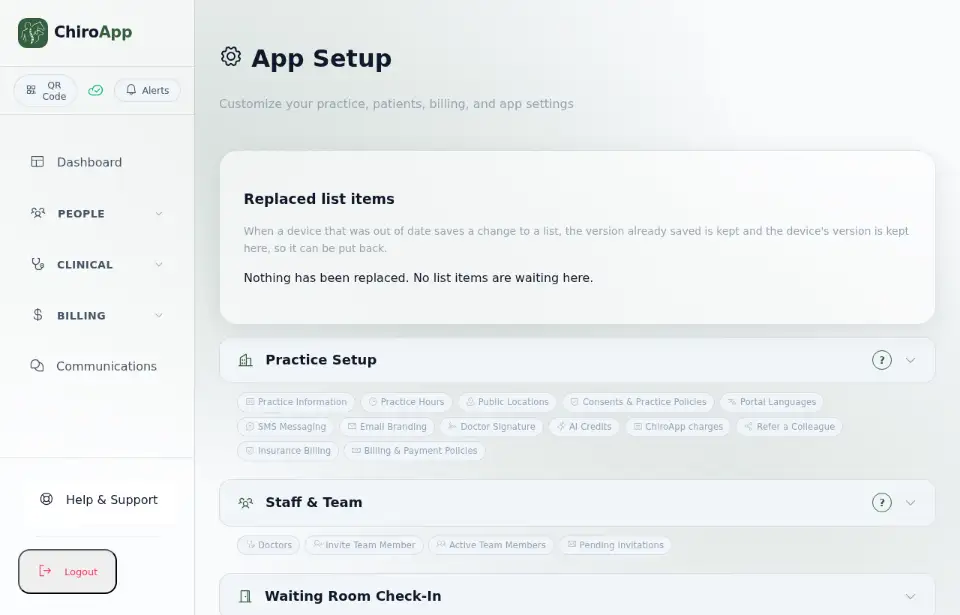
Open Practice Setup. Under Billing & Payment Policies, tick Charge sales tax.
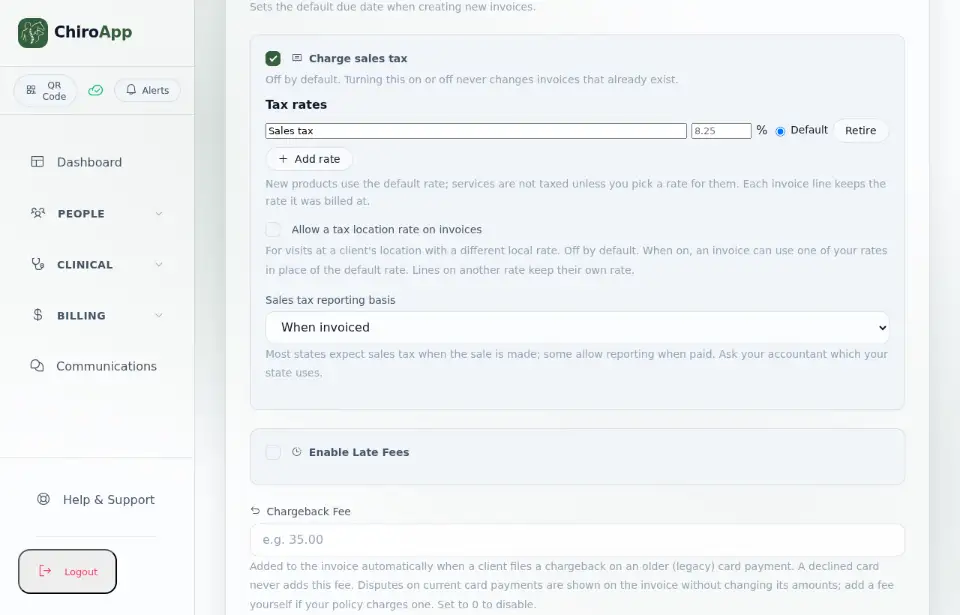
Under Tax rates, type the rate's name and its percent (for example 7). The rate marked Default is used for new products. Add rate adds another rate (for example for another city); Retire stops using one.
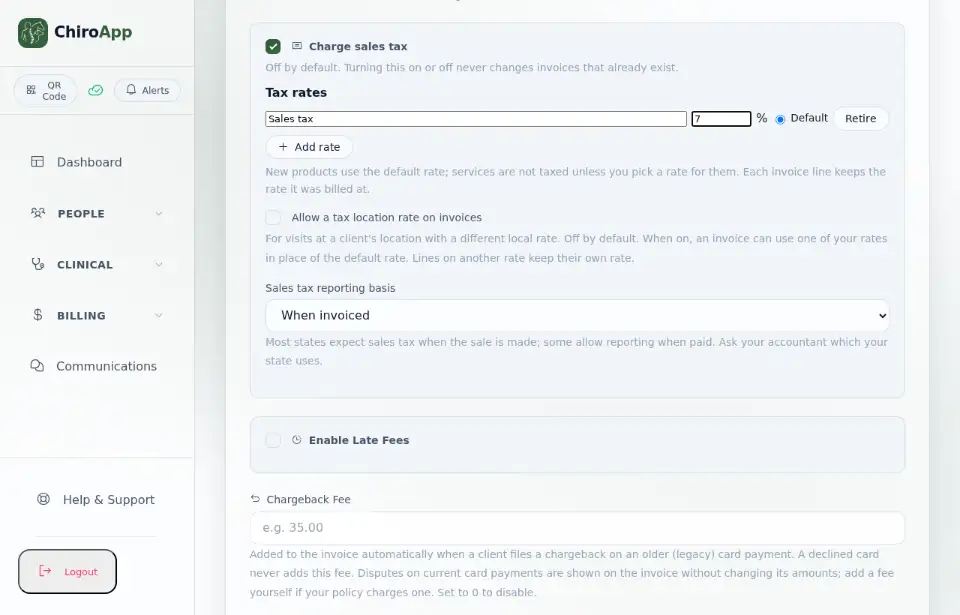
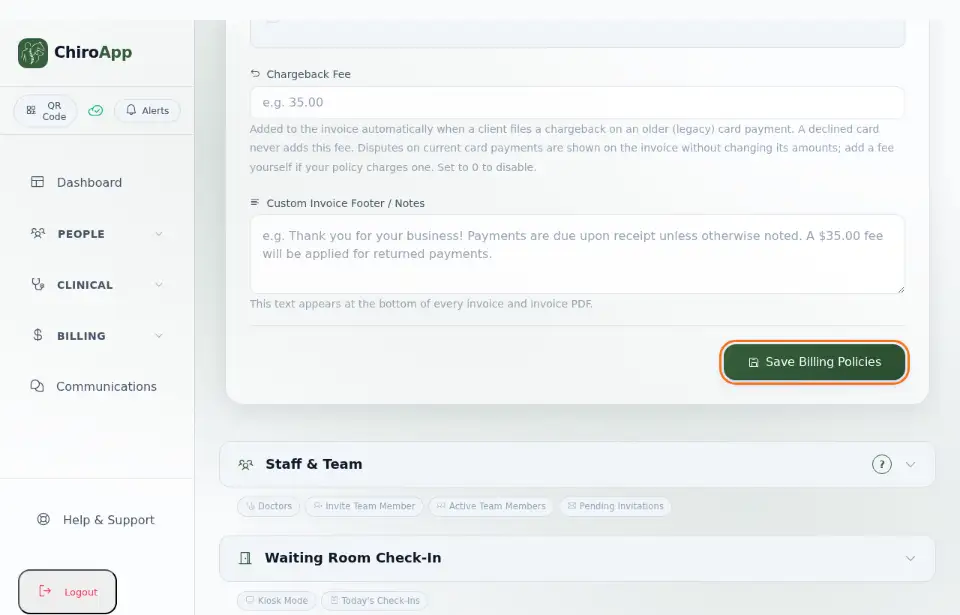
Choose the Sales tax reporting basis: When invoiced or When paid (ask your accountant which your state uses). Press Save Billing Policies.
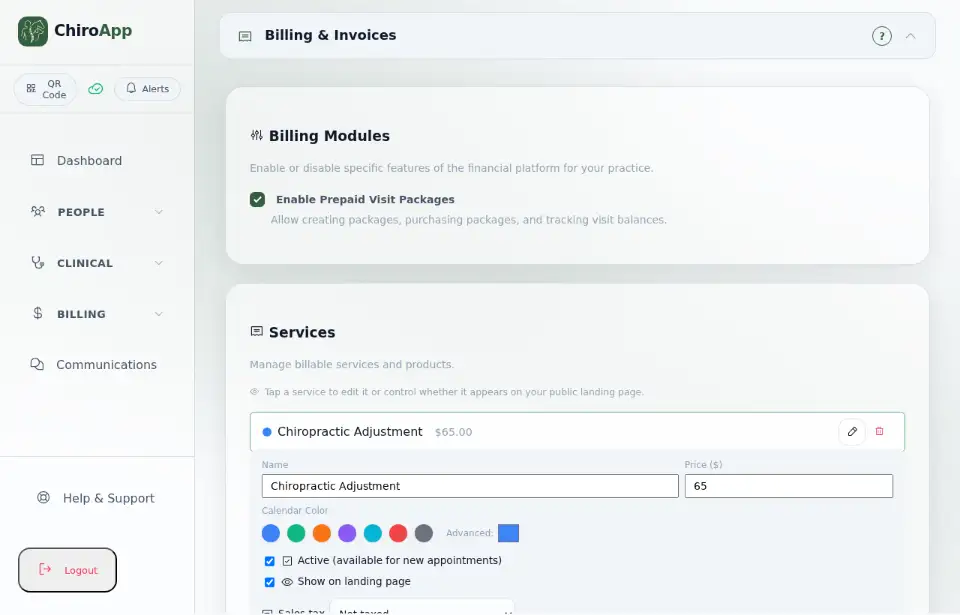
Services are not taxed unless you pick a rate for them. Open Billing & Invoices; under Services, press the pencil beside a service, choose its Sales tax rate and press Save. A product's rate is chosen the same way in Product Catalog.
A client who does not pay sales tax: open the client's details and tick Tax exempt (you can add a reason or certificate number). New invoices for that client get no sales tax. Reports shows the tax billed and collected in its SALES TAX section.