Help Center Getting started
Sign up for a free trial
Create your practice's ChiroApp account: your details, a password that meets the rules, and one emailed code that also signs you in.
Anyone can start a 30-day free trial from the ChiroApp website. You need your practice name, your name, an email address you can open now, and a phone number. You confirm your email with one 6-digit code, and that same code signs you in: there is no second code to wait for.
On the sign-up page, fill in Practice Name, Your Name, Email Address and Phone Number.
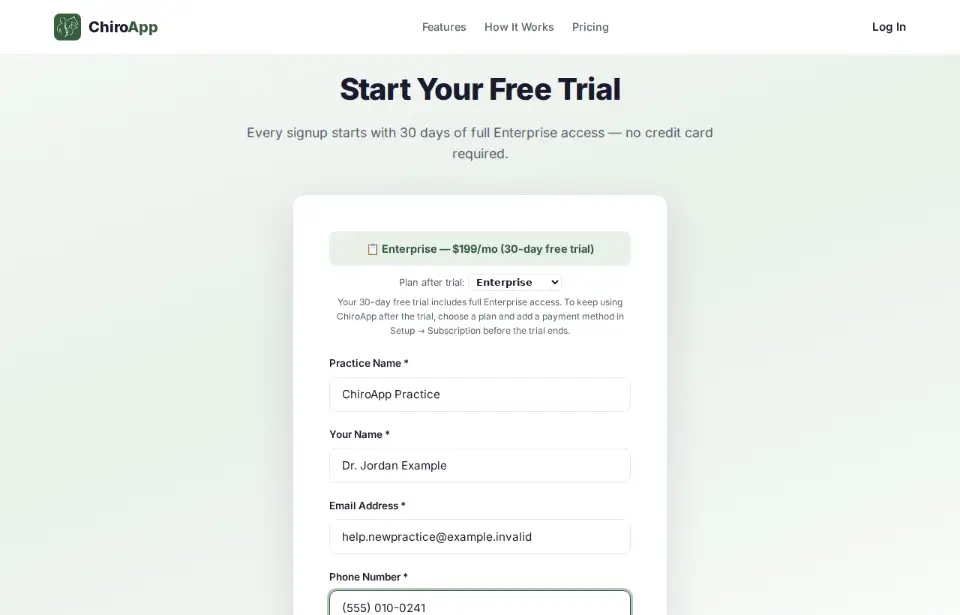
Choose a password. The rules are listed under Password: at least 8 characters, an uppercase letter, a lowercase letter, a number and a special character. Each rule turns green with a check mark as soon as your password meets it. Press Show to see what you typed, then type the same password again in Confirm Password. If a rule is still missing when you continue, ChiroApp lists every missing rule at once.
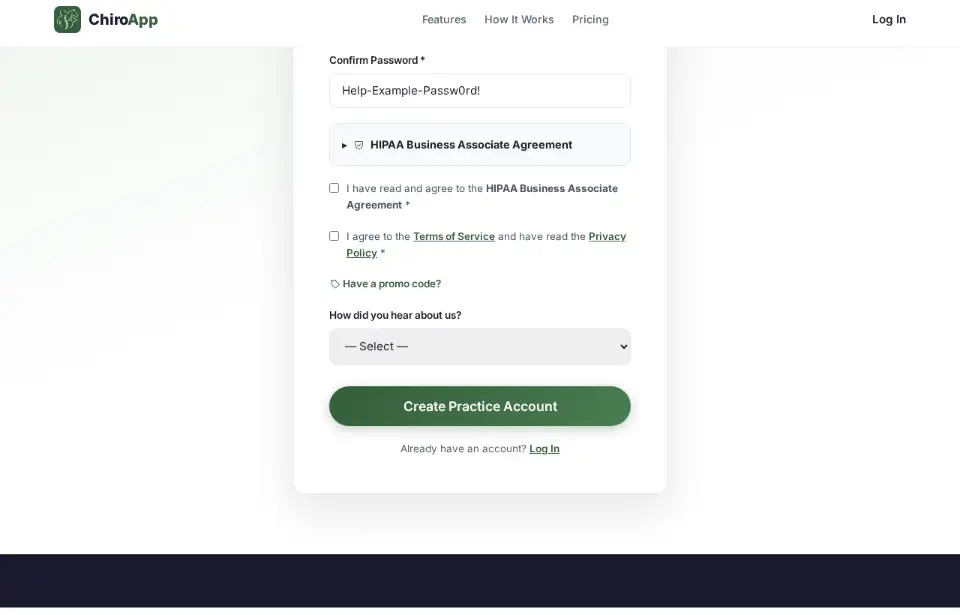
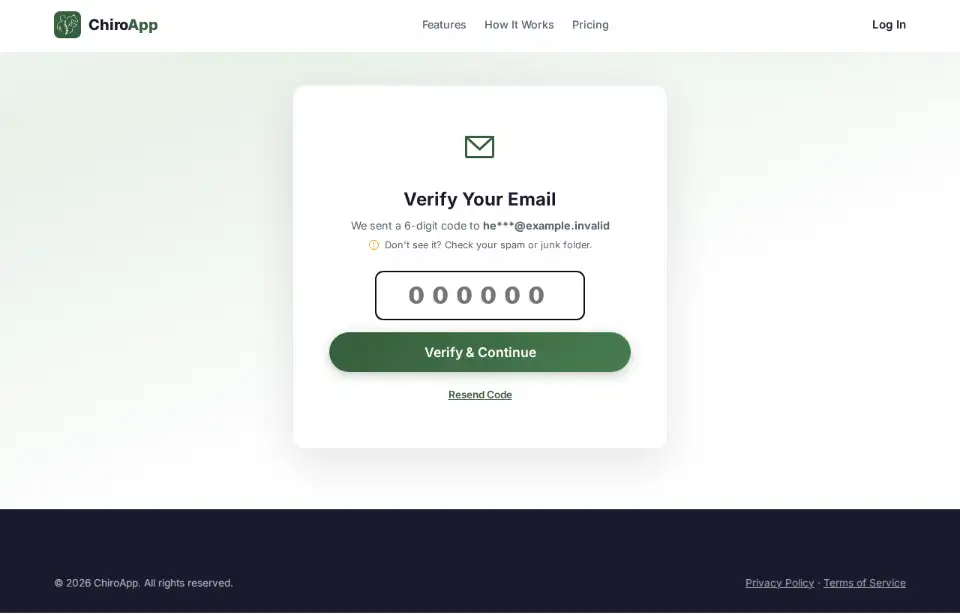
Check the two agreement boxes and press Create Practice Account. ChiroApp emails you a 6-digit code and shows Verify Your Email. Type the code (spaces don't matter) and press Verify & Continue. ChiroApp opens already signed in, and this device is remembered for 30 days. If the email doesn't come, check your spam or junk folder, or press Resend Code.
Next, the setup tour walks you through your practice details: see Getting started: the setup tour. To sign in later, see Sign in, email codes and signing out.