Help Center Getting started
Services, prices and visit types
Set the services you charge for (with prices) and the visit types you book and document.
Services are what you charge for: they appear on invoices with their price. Visit types are what you book and write notes for. The setup tour creates a few of each; change them here at any time.
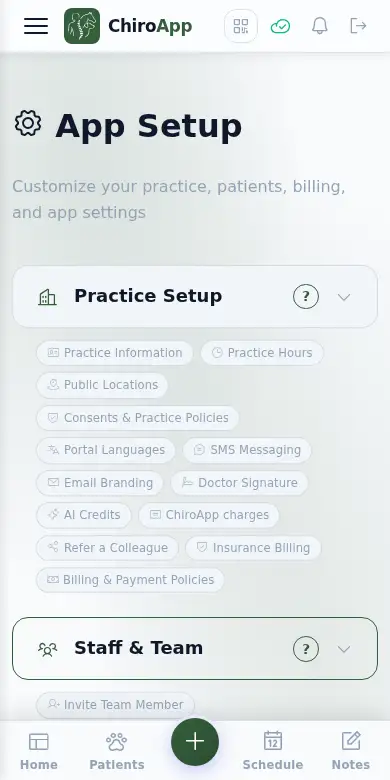
In the menu, open Setup.
On a phone On a phone, tap the menu button (three lines) at the top left first. Setup is near the bottom of the menu.
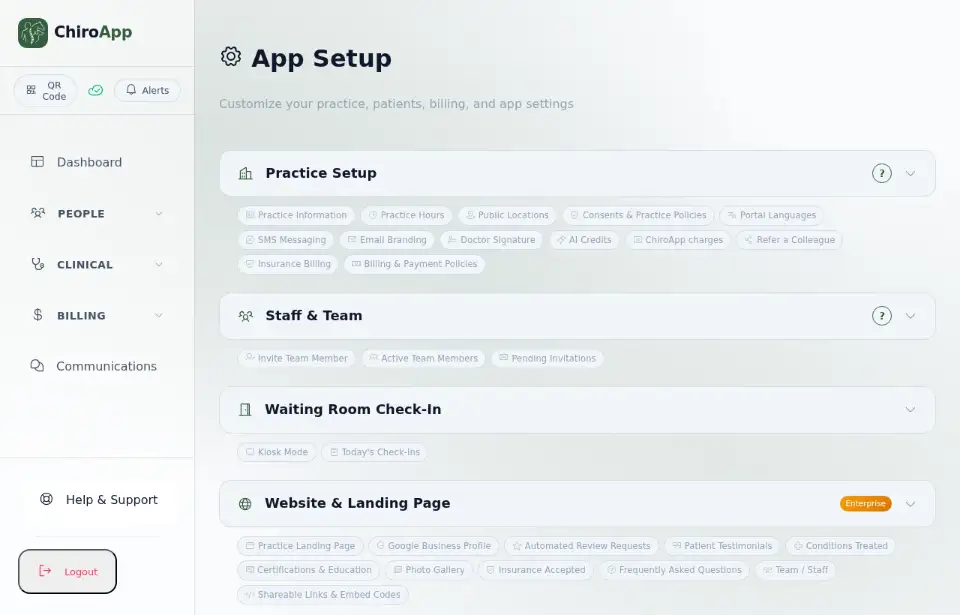
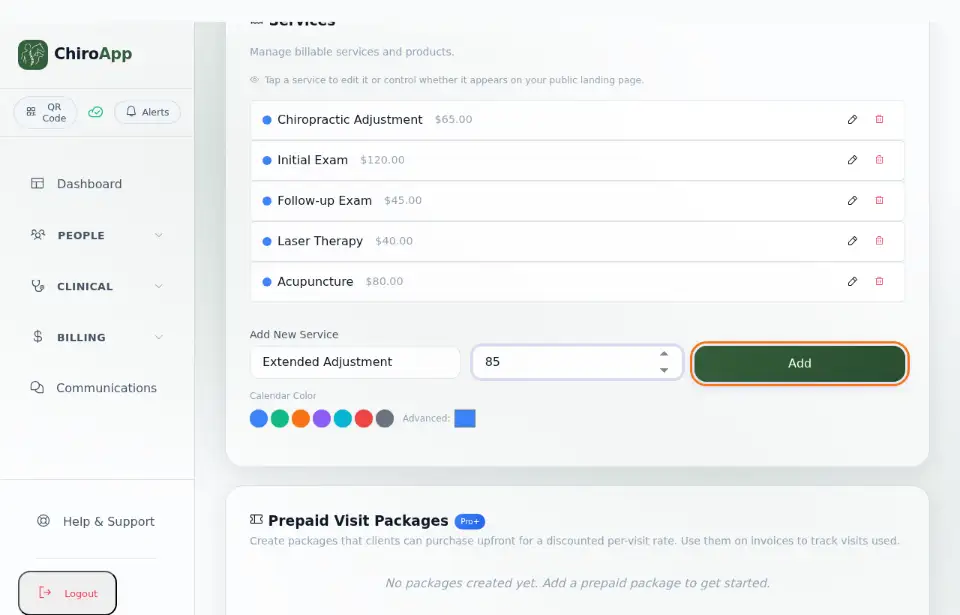
Open Billing & Invoices. The Services card lists what you charge for, with prices. Press a service to change its name or price.
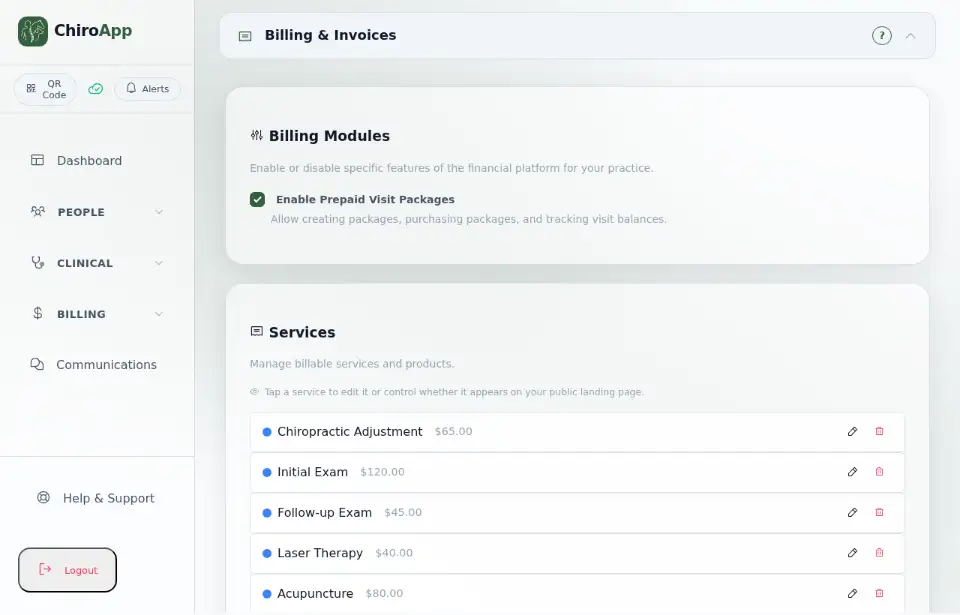
To add a service, type its name in Service Name and its price in Price ($) under Add New Service, pick a Calendar Color, and press Add.
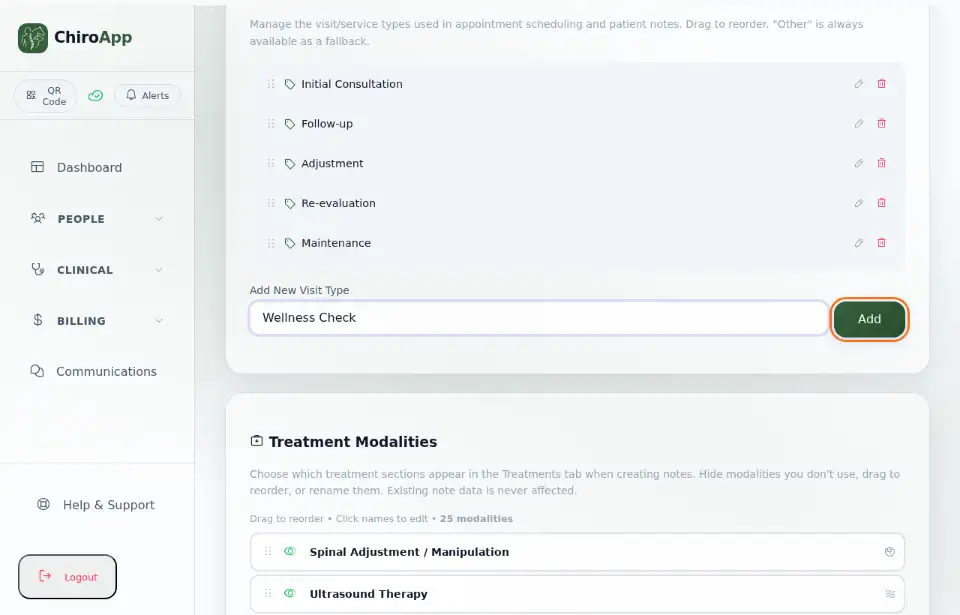
Visit types are what you book and document (for example Initial Consultation or Follow-up). Open Patient Notes and find Visit Types. Type a new one under Add New Visit Type and press Add.
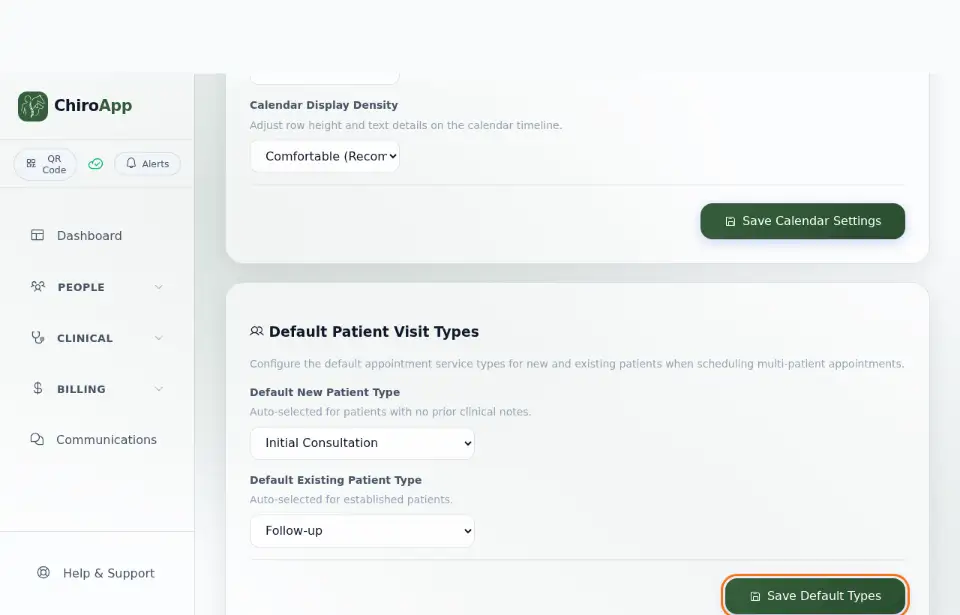
Optional: open Appointments and find Default Patient Visit Types to choose the visit type ChiroApp picks for new patients (Default New Patient Type) and for returning ones (Default Existing Patient Type). Press Save Default Types.