Help Center Getting started
The patient portal
How clients get into your patient portal and what they can do there.
Your clients use the patient portal to see their appointments and invoices and to pay. Your practice also has a public page and two shareable forms (intake and appointment request) that you can link from your own website or text to a client.
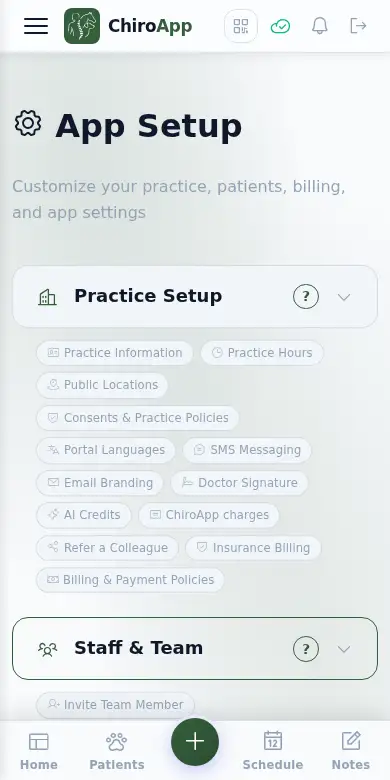
In the menu, open Setup.
On a phone On a phone, tap the menu button (three lines) at the top left first. Setup is near the bottom of the menu.
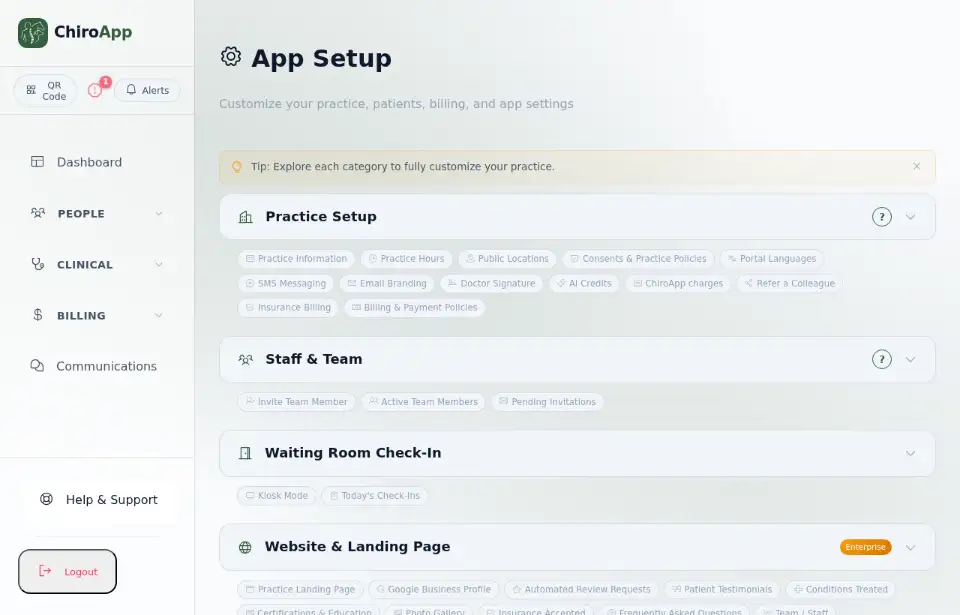
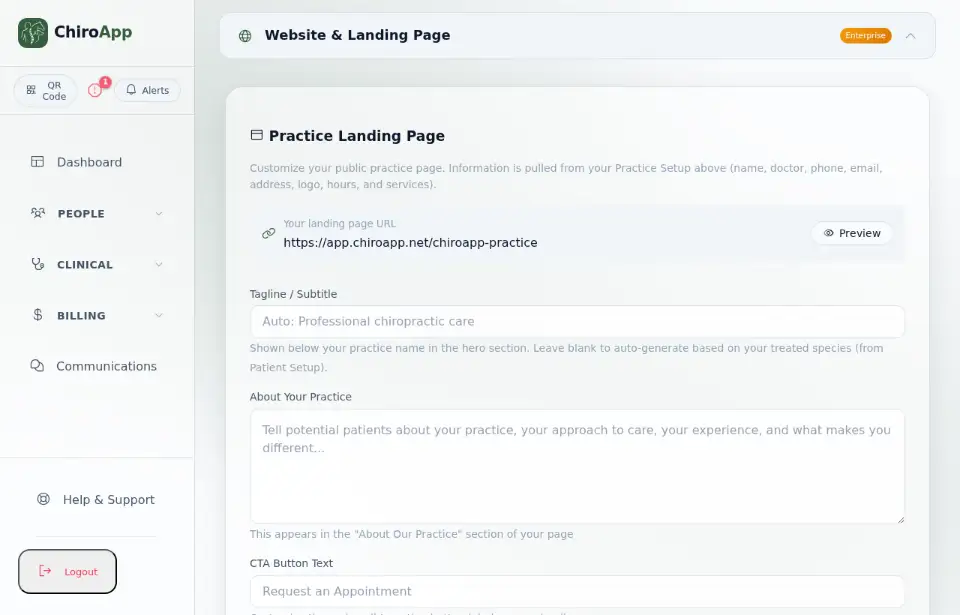
Open Website & Landing Page. Under Practice Landing Page, Your landing page URL is the public page for your practice: share it with clients. Press Preview to see it as a client does.
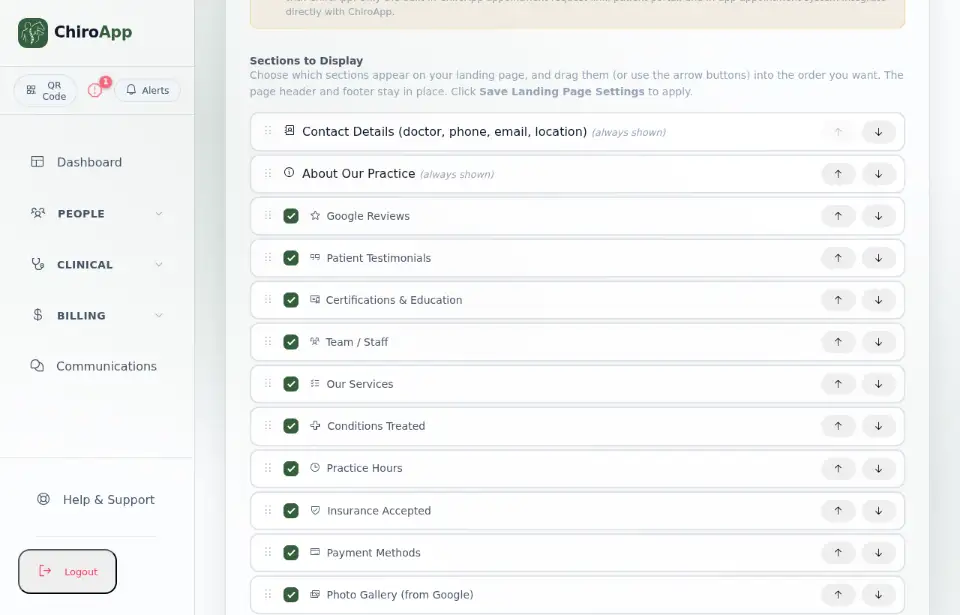
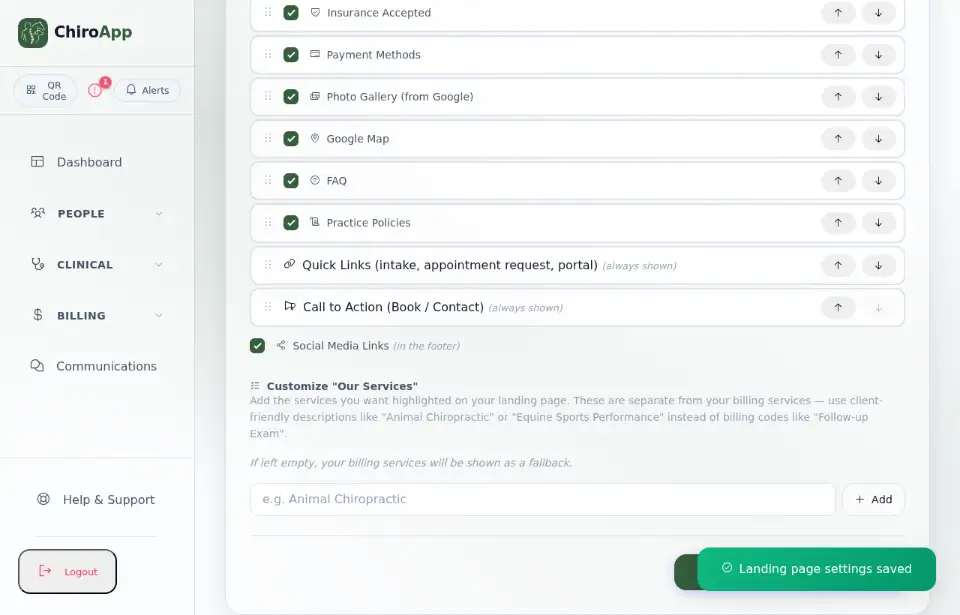
Under Sections to Display, choose what the page shows (for example Our Services, Practice Hours and FAQ) and drag the sections into the order you want. Press Save Landing Page Settings.
Under Shareable Links & Embed Codes, the ONLINE INTAKE FORM and the APPOINTMENT REQUEST FORM each have a link: press Copy Link to copy it, or Show iframe embed code to put the form on your own website.
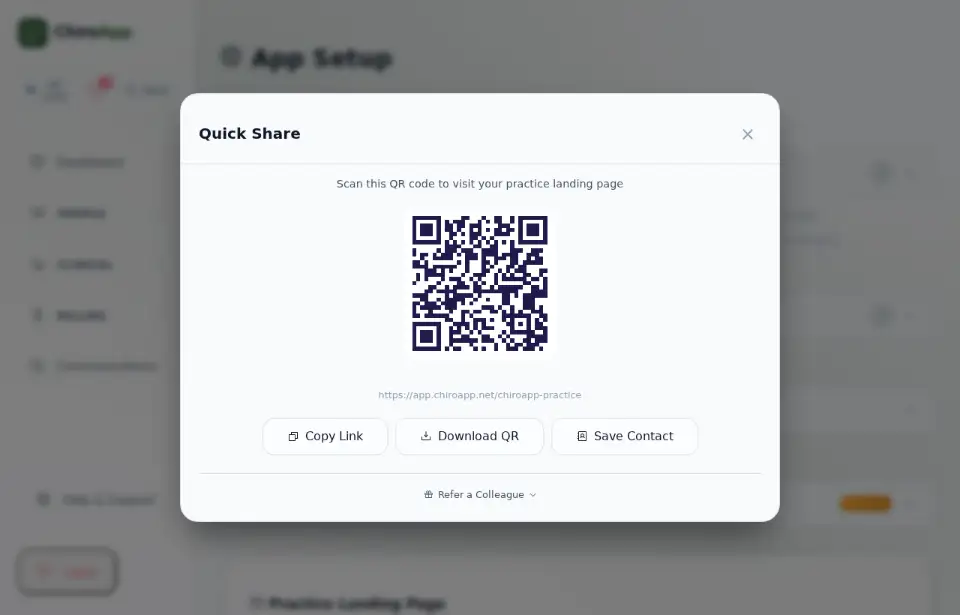
The QR Code button at the top of the menu opens Quick Share: the QR code for your practice page, so a client can scan it from your front desk. It also has Copy Link, Download QR and Save Contact. On a phone, the QR code icon is in the top bar.