Help Center Getting started
Intake forms
Choose what your intake form asks, and send it to new and existing clients.
The intake form is what new clients fill in. Practice Setup decides which optional questions it asks, and you can add your own. The form always collects the basics the app needs to create the patient and client.
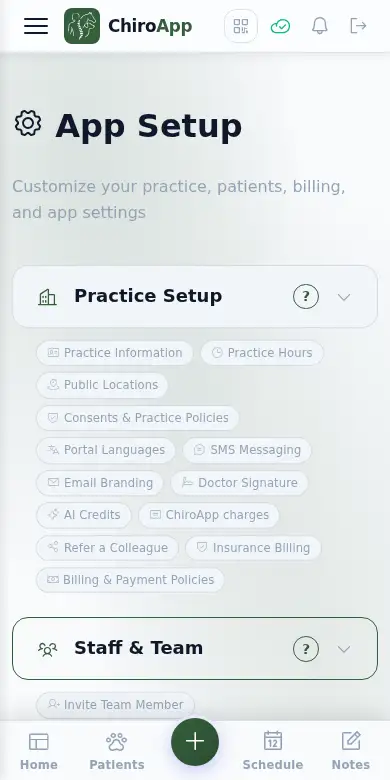
In the menu, open Setup.
On a phone On a phone, tap the menu button (three lines) at the top left first. Setup is near the bottom of the menu.
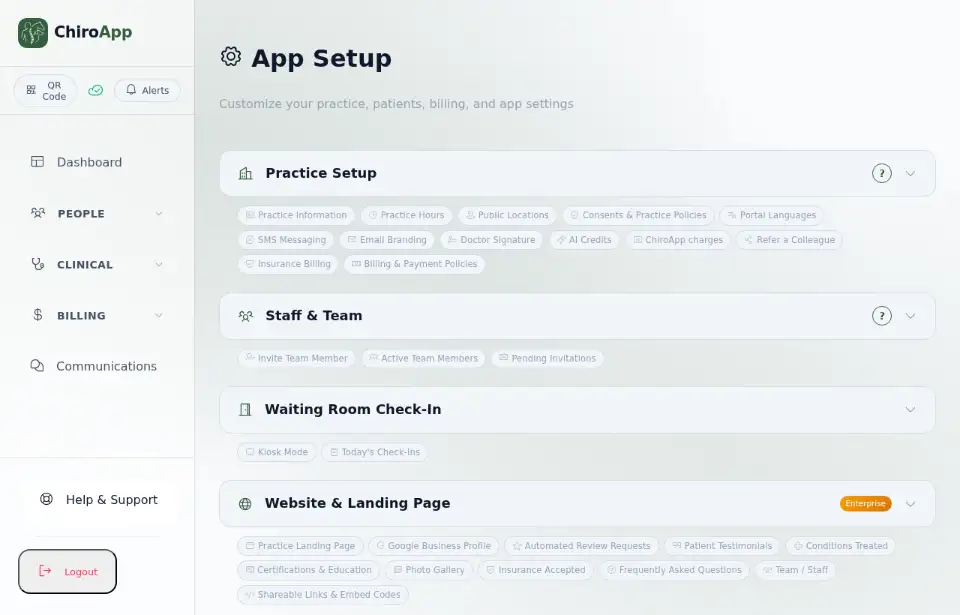
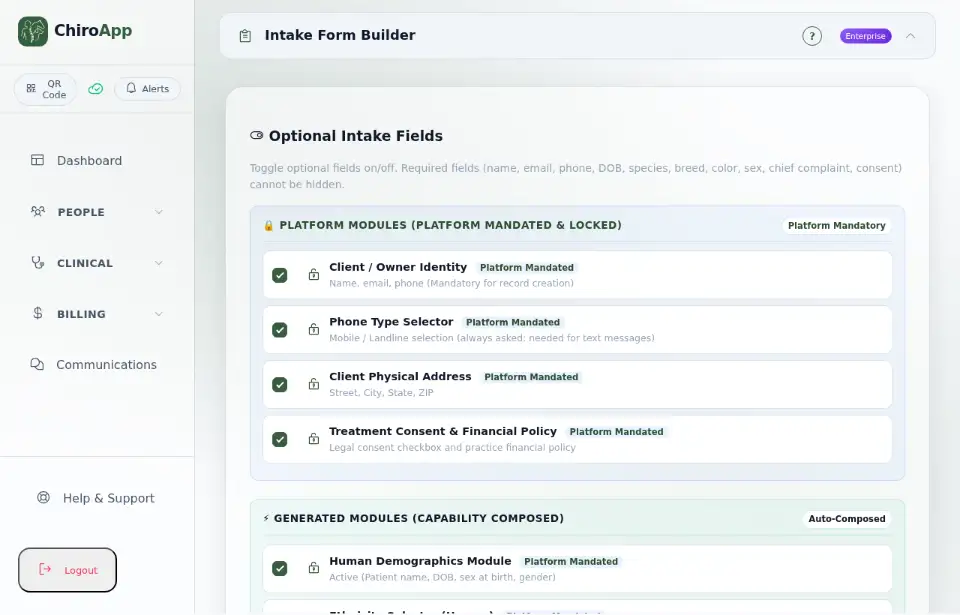
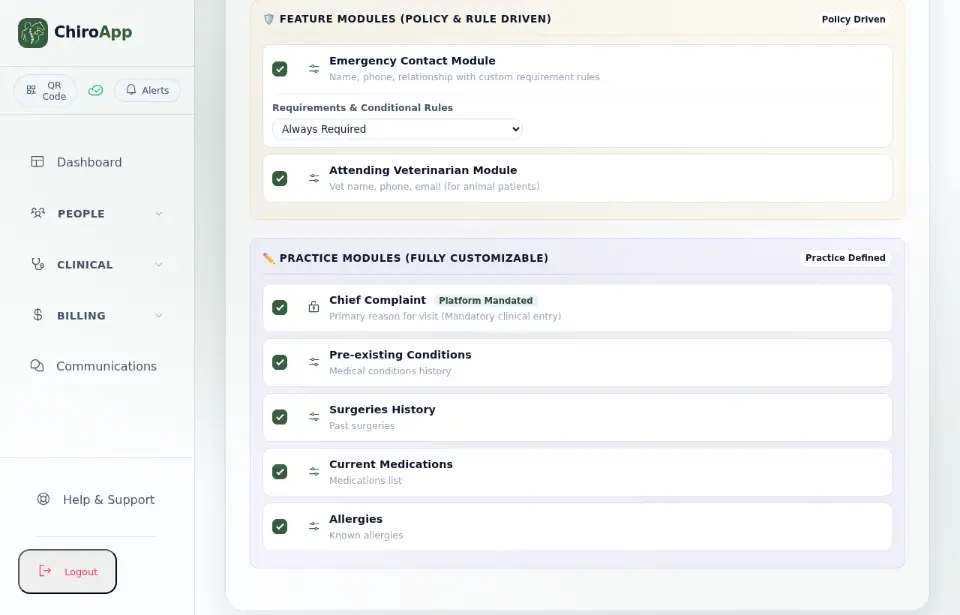
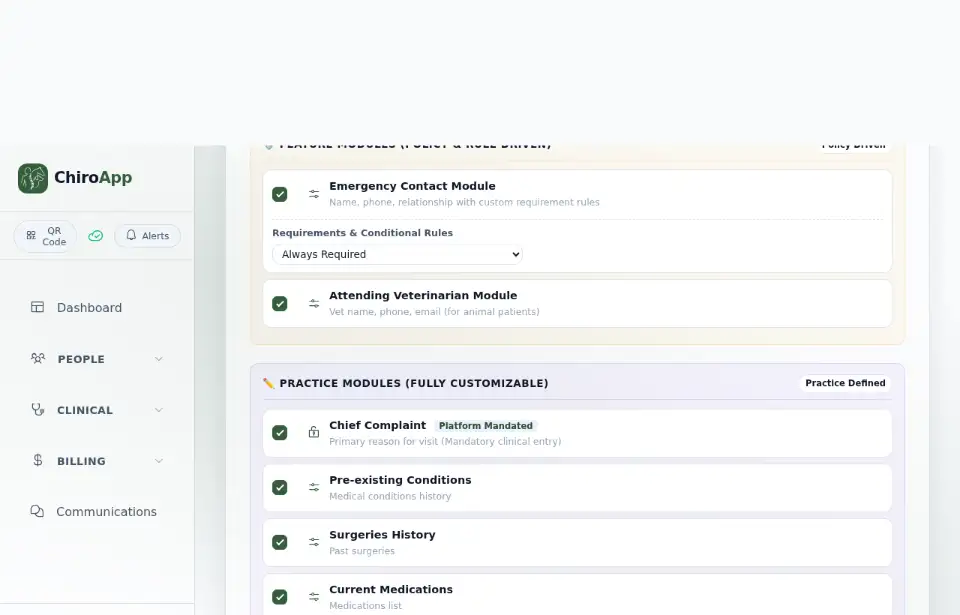
Open Intake Form Builder. Optional Intake Fields lists every question. Questions marked Platform Mandated are required and cannot be hidden; the others you can switch on or off.
Under Emergency Contact Module, pick Requirements & Conditional Rules to decide who must give an emergency contact: nobody, everybody, humans only, animals only, or minors only.
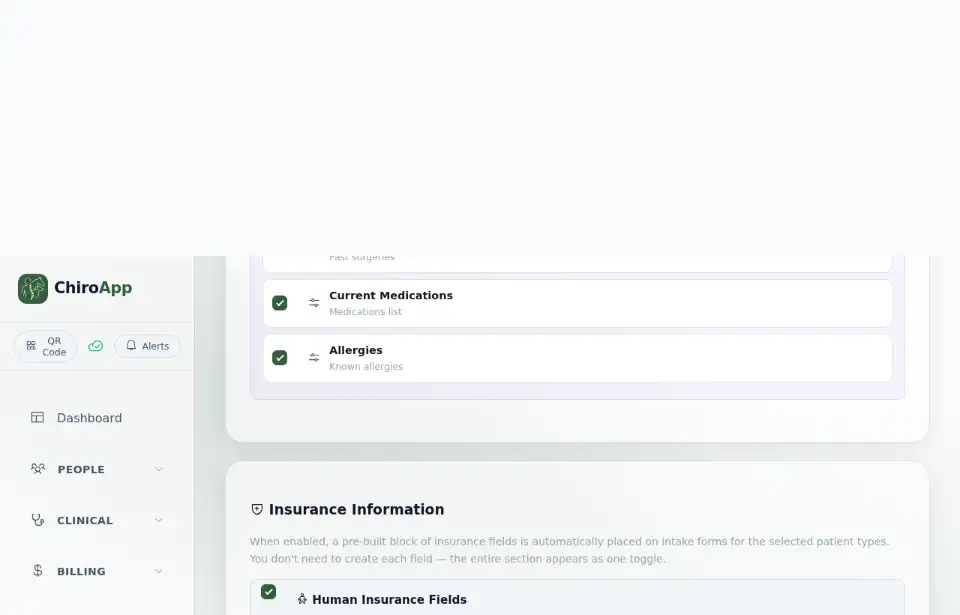
Under Insurance Information, switch on Human Insurance Fields and Animal/Pet Insurance Fields to add the whole insurance section to the form in one go.
Under Custom Intake Fields, use Add Custom Field to ask your own question: type the Question / Label, pick the Field Type, tick Required if it must be answered, and choose where it goes with Placement Module. Then press Add Field.
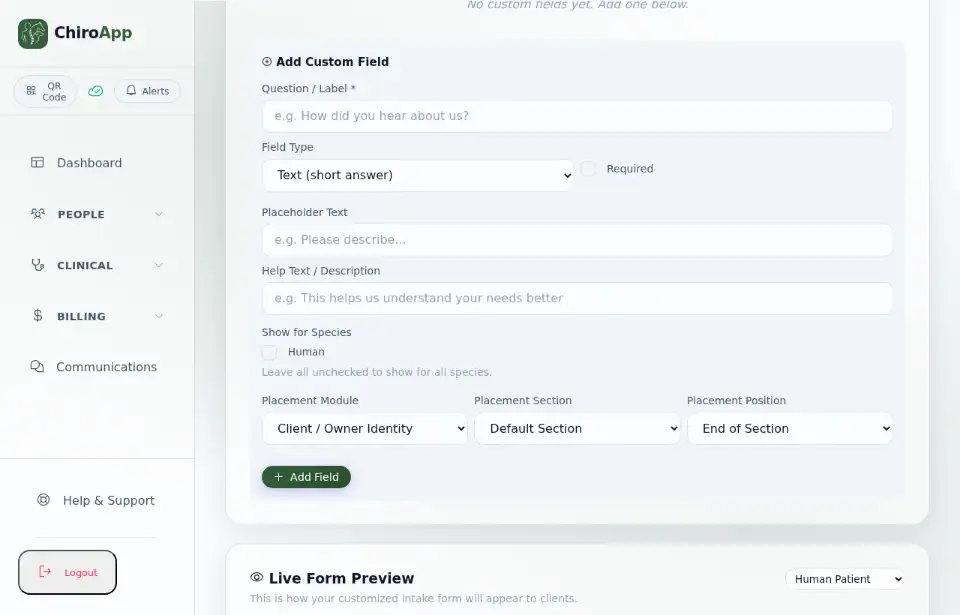
Live Form Preview shows the form as a client sees it. Use the species list above the preview to switch between a human patient and an animal.