Help Center Getting started
Online booking and choosing a doctor
Choose how clients request or book appointments online, and let them pick a doctor.
Clients ask for an appointment from your public request page. You decide whether they ask for a time range, ask for a specific time, or book an open time at once. If your practice has two or more bookable doctors you can also let clients choose a doctor.
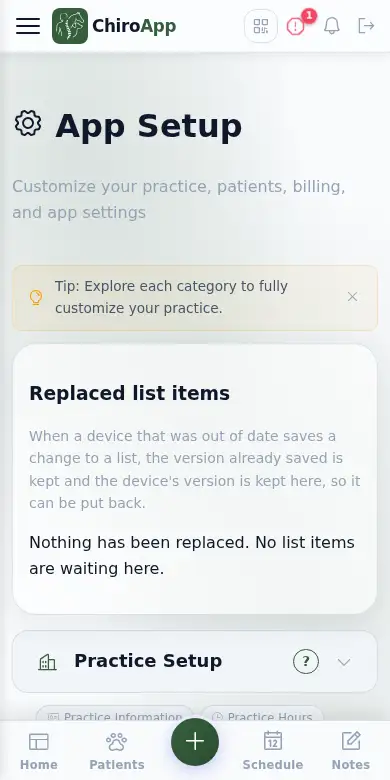
In the menu, open Setup.
On a phone On a phone, tap the menu button (three lines) at the top left first. Setup is near the bottom of the menu.
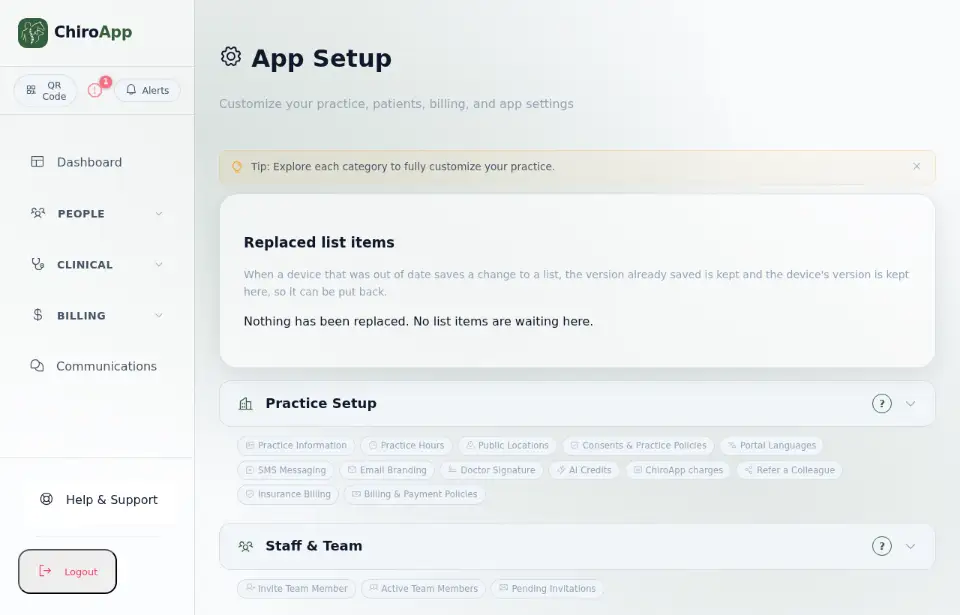
Open Appointments, then Online Appointment Requests. Keep Accept Online Appointment Requests ticked. Under Booking Mode choose Request a Time Range, Request a Specific Time, Book an Available Time or Hybrid.
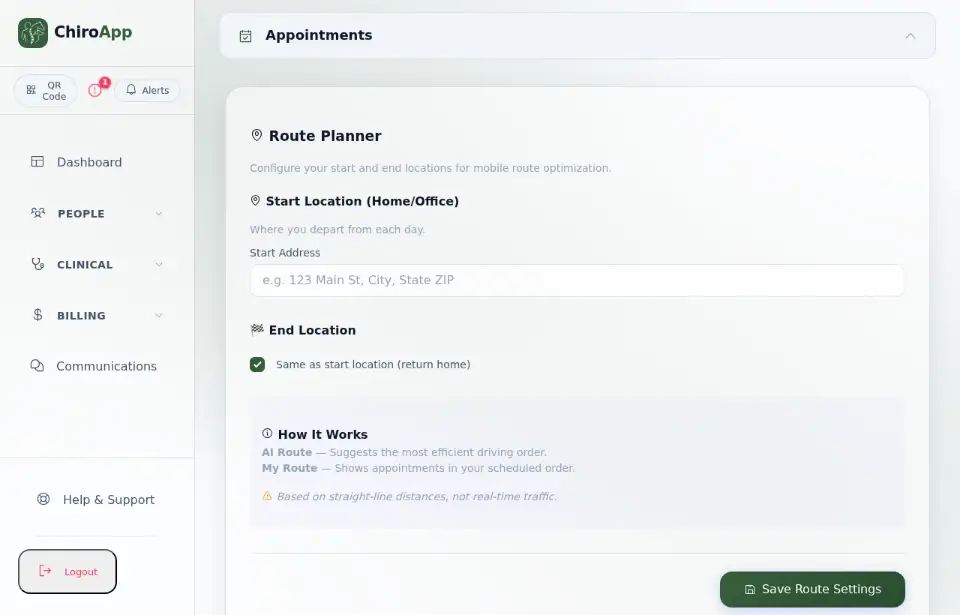
Under Doctor Choice, tick Let clients choose a doctor when they book or request online. This is off until you tick it, and it only shows when two or more doctors are bookable. Each doctor's name, credentials, working hours and booking rules come from their doctor profile; a doctor you mark as not bookable is not shown.
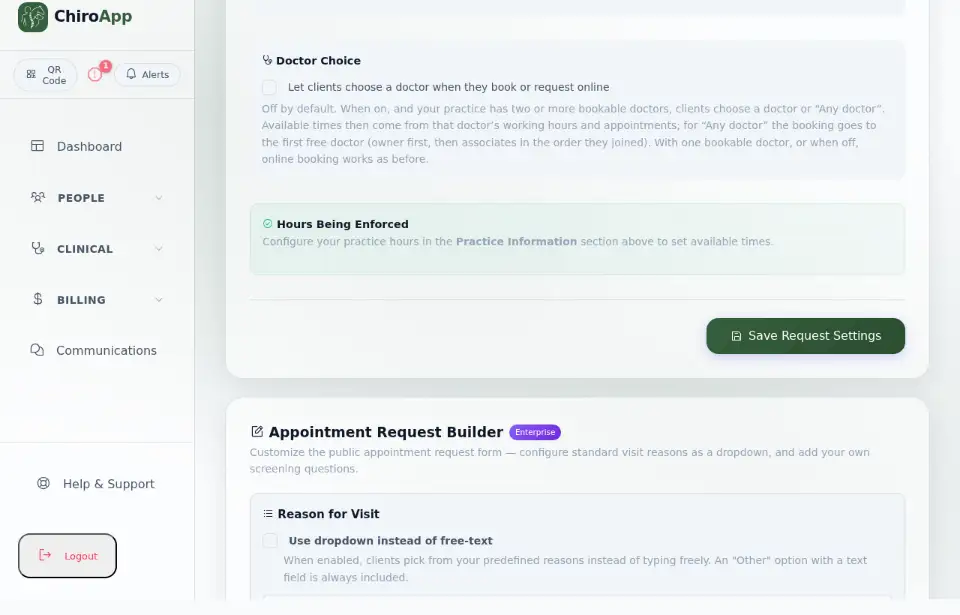
Press Save Request Settings. On your public request page clients now see "Choose a doctor" with each doctor and "Any doctor". The times they see are that doctor's working hours minus that doctor's own appointments; for "Any doctor" it is every doctor's open times together, and the booking goes to the first free doctor (the owner first, then associates in the order they joined).
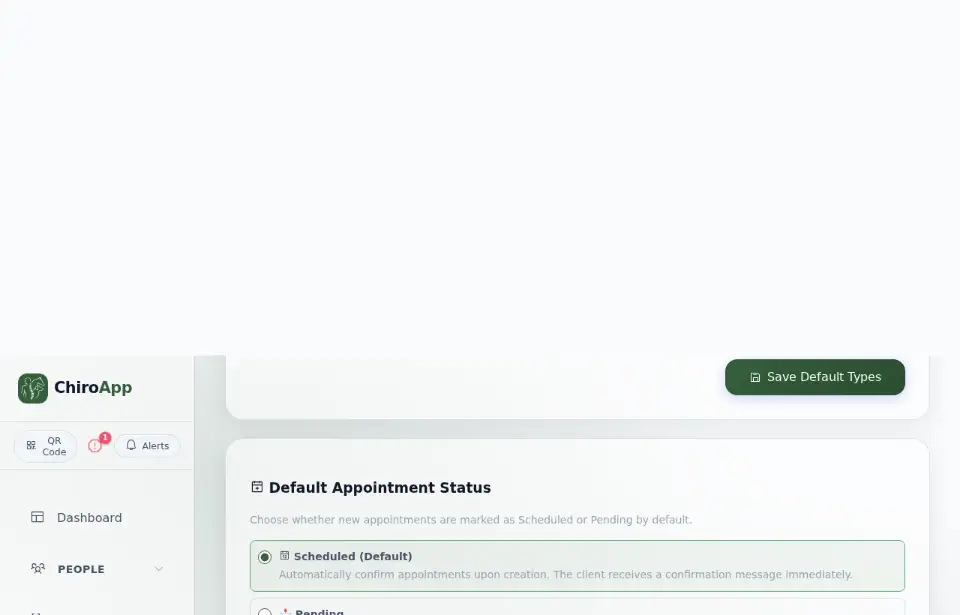
When a request or booking arrives, open it from the Clinic Inbox. The review shows "Requested Doctor". When you approve it, the appointment is created with that doctor. A doctor who is not accepting new patients is not offered on the public page, and a doctor who does not offer clinic or mobile visits is hidden for that visit type.