Help Center Getting started
Add a patient
Add a new patient (and the client who is responsible for them) with the staff intake form.
New patients are added with the intake form under People > Intake. One form creates the patient and the client together, so everything you need for booking, notes and invoices is there from the start. (Your clients can also fill in the same form themselves from your intake link; see Intake forms.)
Human practice
In a human practice the patient is usually also the client (the person who pays). For a child, choose that someone else (for example a parent) is responsible.
In the menu, open People, then Intake.
On a phone On a phone, tap the menu button (three lines) at the top left first.
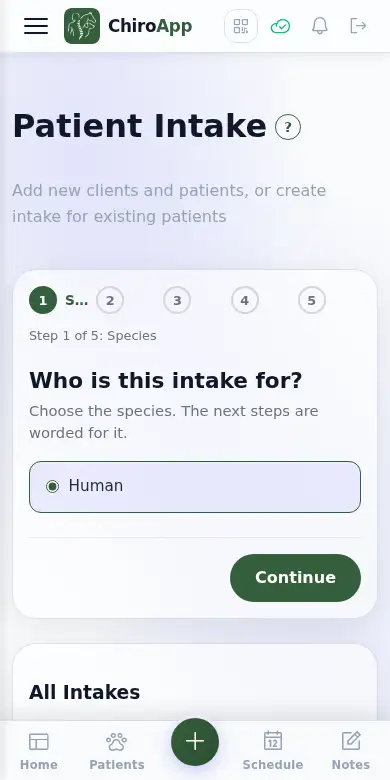
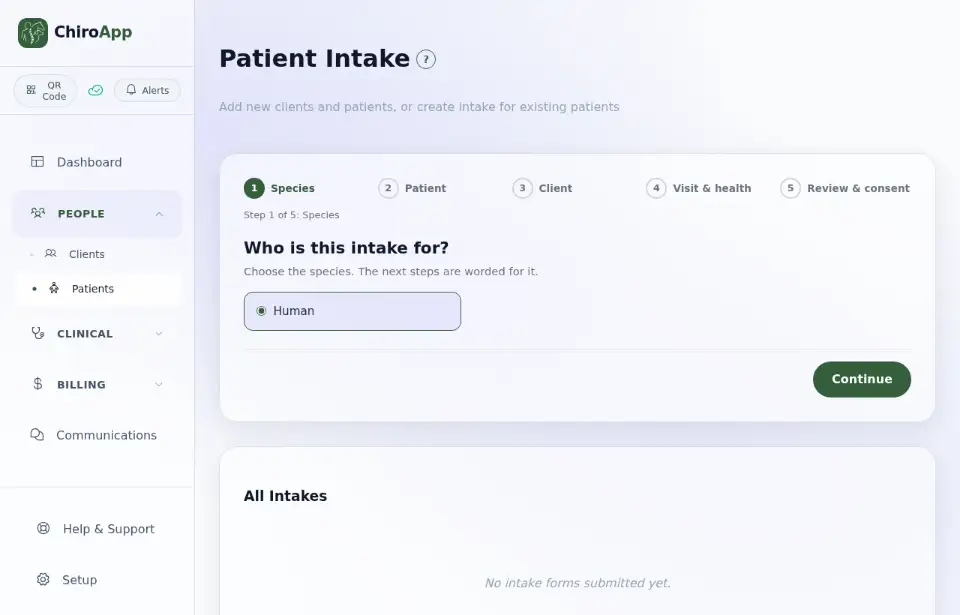
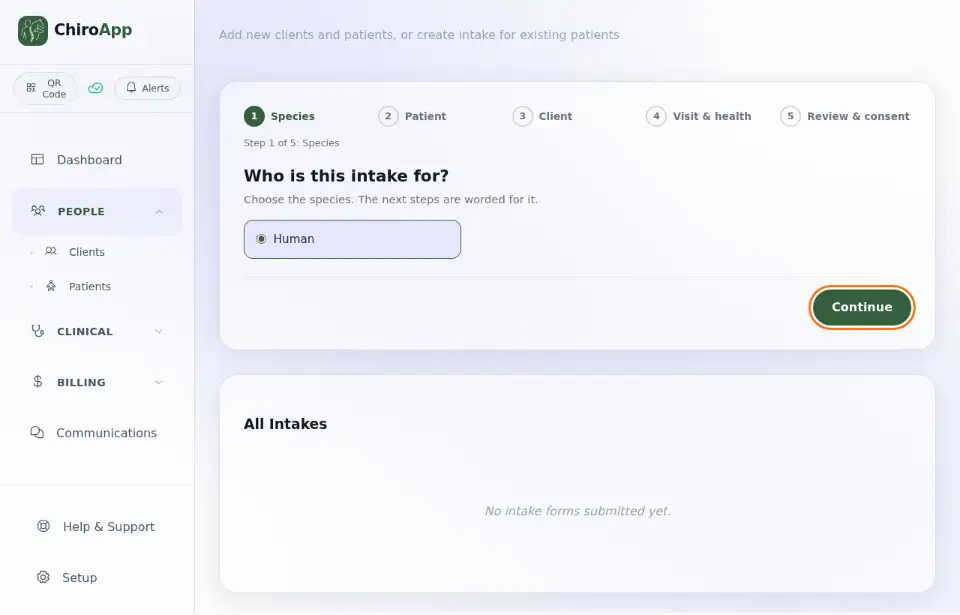
Under Who is this intake for?, choose Human, then press Continue.
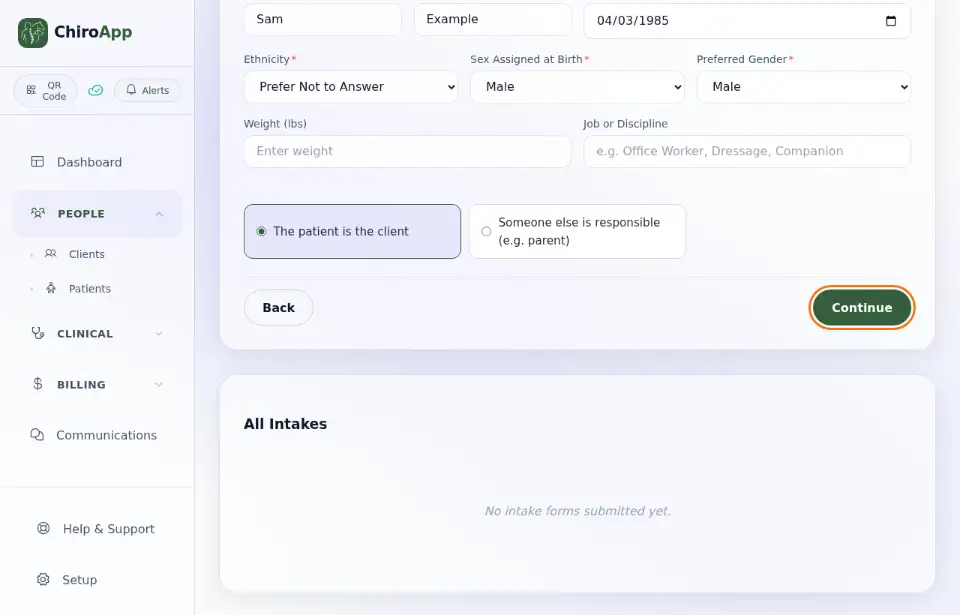
Fill in the patient: First Name, Last Name, Date of Birth, Ethnicity, Sex Assigned at Birth and Preferred Gender. Choose The patient is the client if the patient pays for their own care, or Someone else is responsible (e.g. parent). Press Continue.
Fill in the client details. Because the patient is the client, ChiroApp fills in the name for you. Add Email, Phone, Phone Type, the address (Street Address, City, State, Zip Code) and the emergency contact (Emergency Contact Name, Emergency Phone, Relationship). Press Continue.
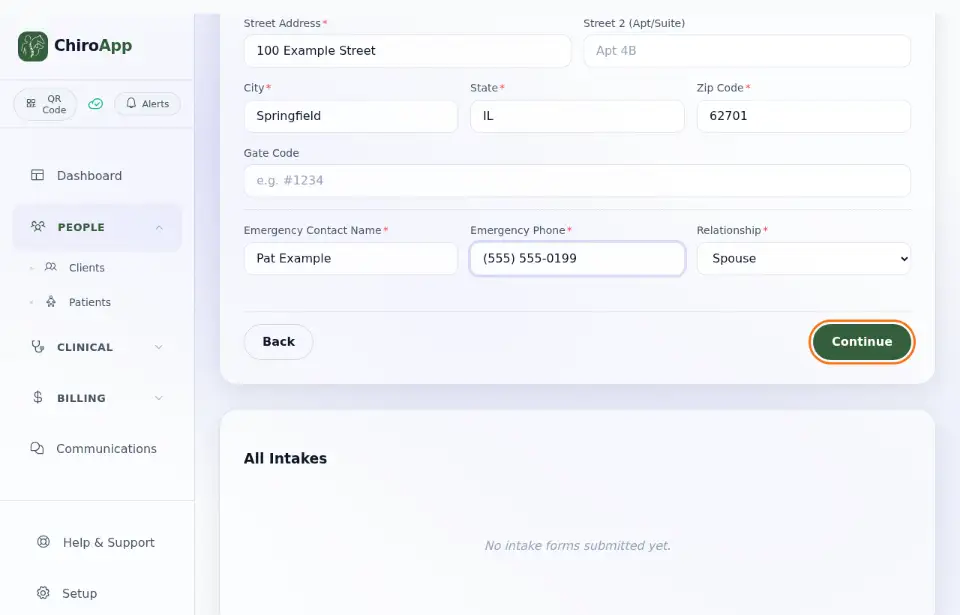
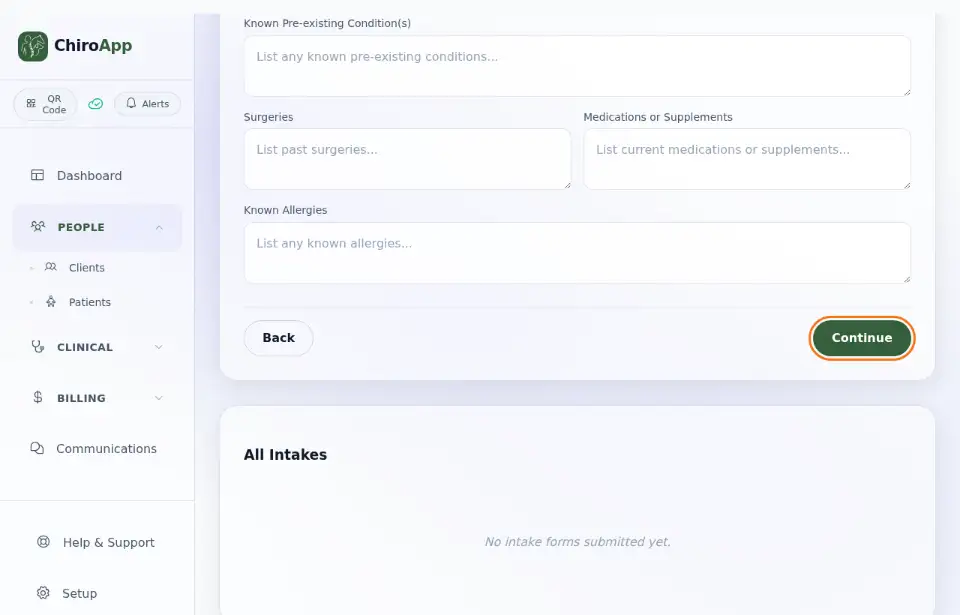
Under Visit & health, describe the Current Condition / Chief Complaint. The other boxes are optional. Press Continue.
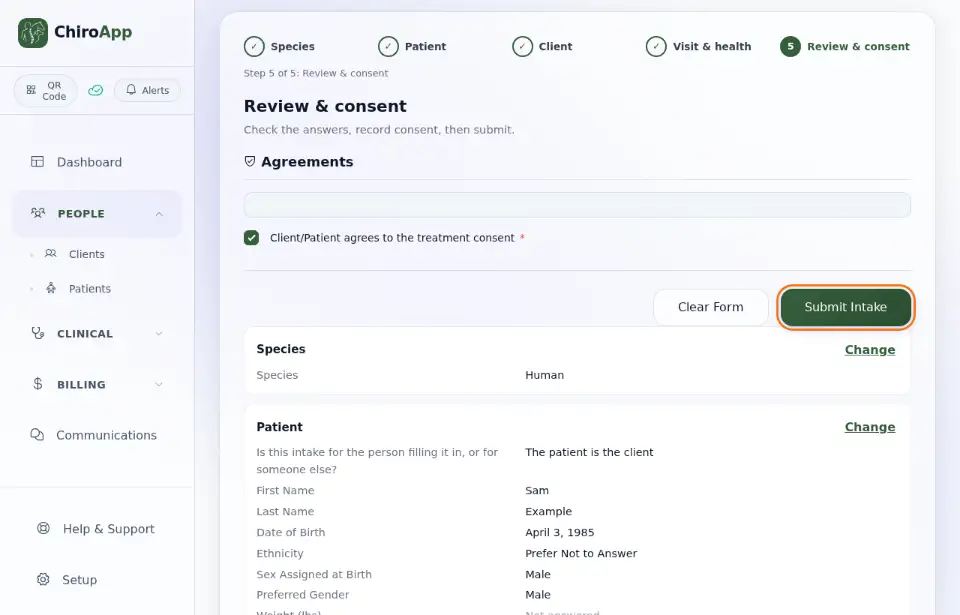
Check the answers. To fix one, press Change next to that part. Tick Client/Patient agrees to the treatment consent, then press Submit Intake.
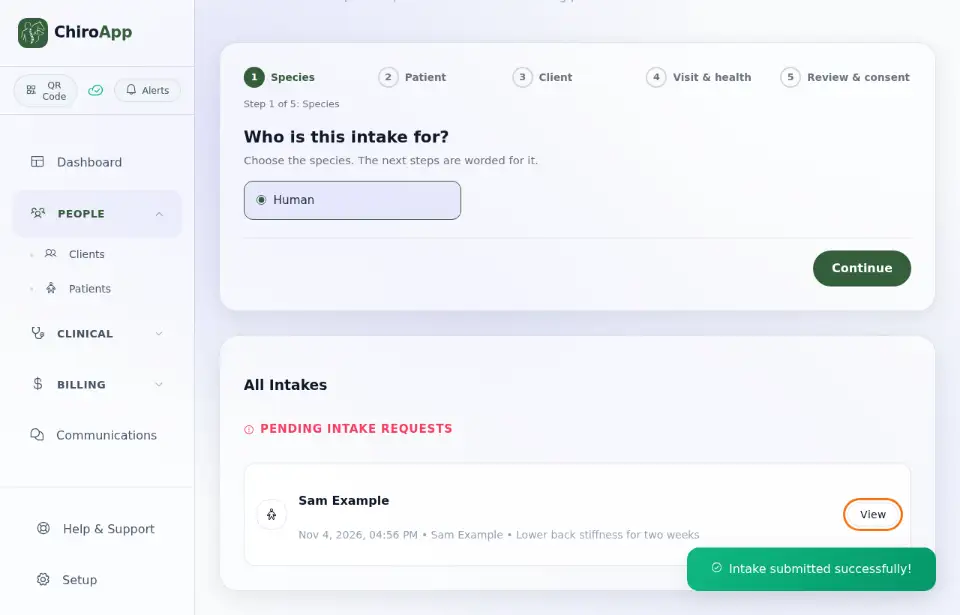
ChiroApp shows Intake submitted successfully! and the new intake appears under Pending Intake Requests. The patient and client are saved now. Press View to see the intake, then View Patient Profile to open the patient.
Animal practice
In an animal practice the patient is the animal and the client is the owner. Add the owner's details in the same form.
In the menu, open People, then Intake.
On a phone On a phone, tap the menu button (three lines) at the top left first.
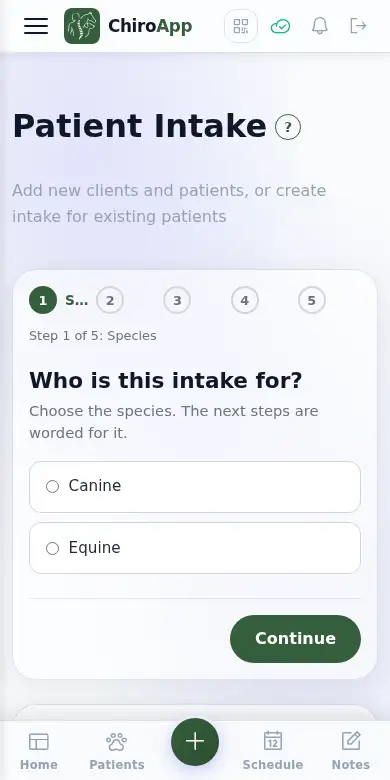
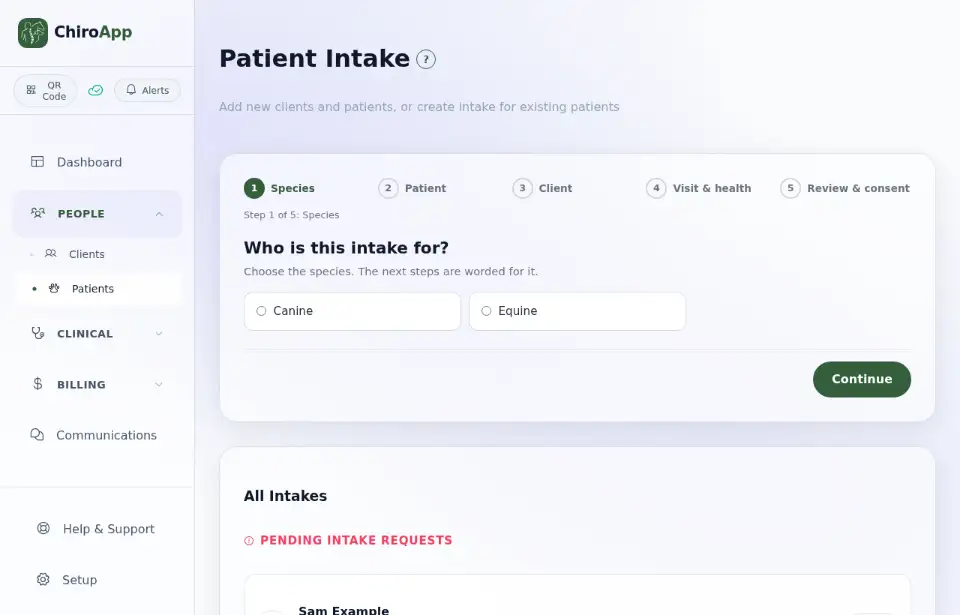
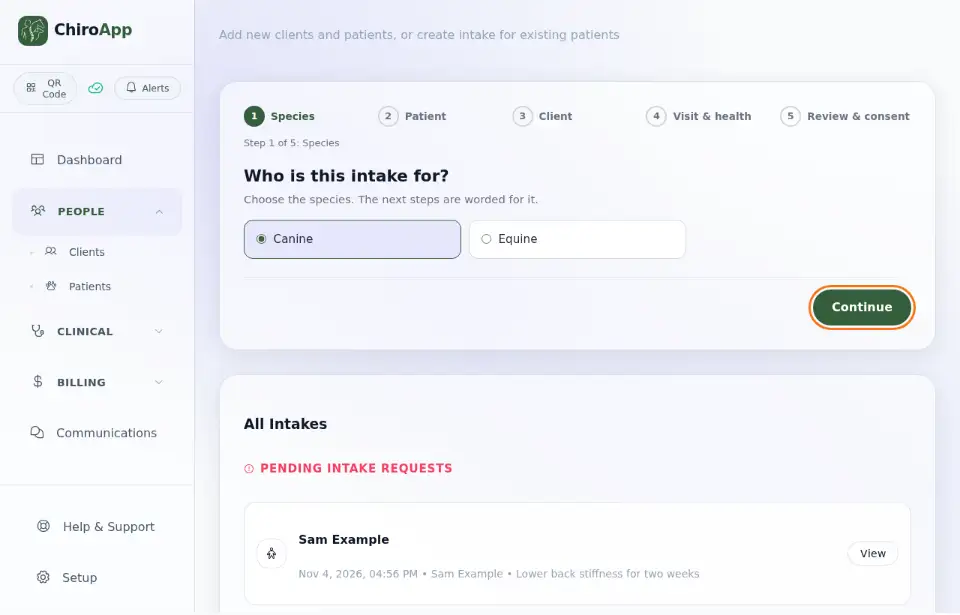
Under Who is this intake for?, choose the animal's species (for example Canine), then press Continue.
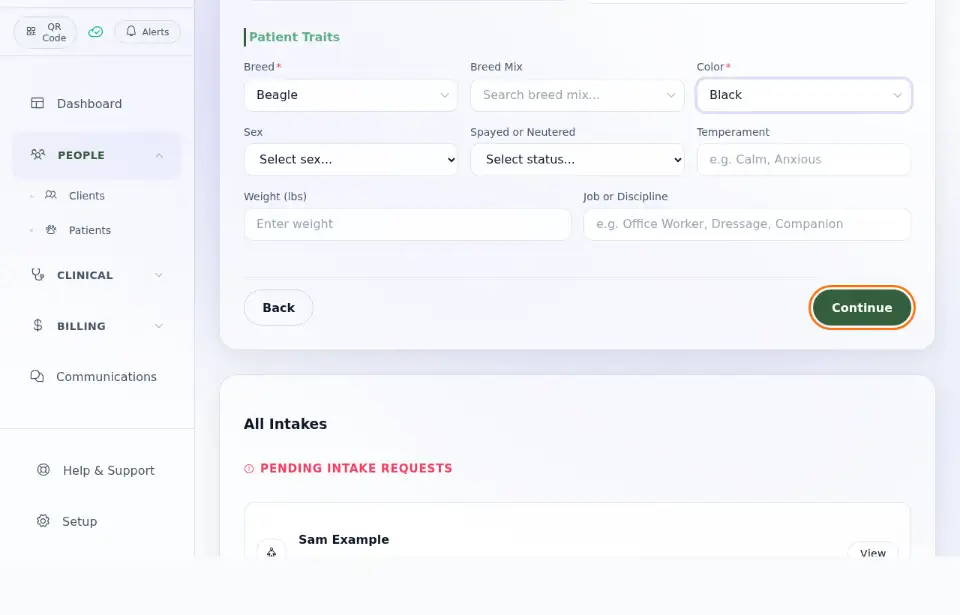
Fill in the patient: Patient Name, Breed and Color (and anything else you know, such as Sex and Weight (lbs)). Press Continue.
Fill in the owner (the client): First Name, Last Name, Email, Phone, Phone Type, the address (Street Address, City, State, Zip Code) and the emergency contact (Emergency Contact Name, Emergency Phone, Relationship). If the owner is already in ChiroApp, search for them under Existing Client (optional) instead. Press Continue.
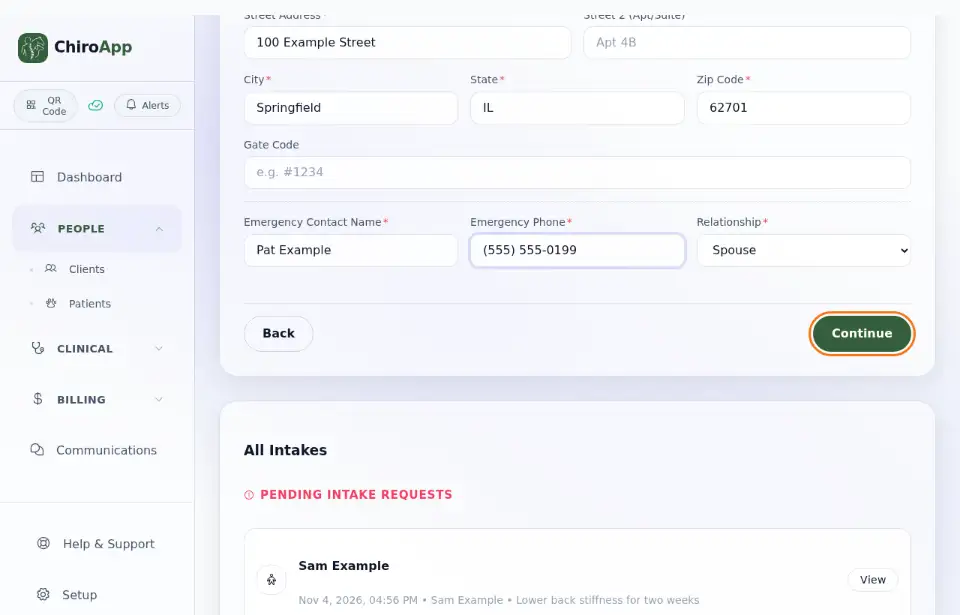
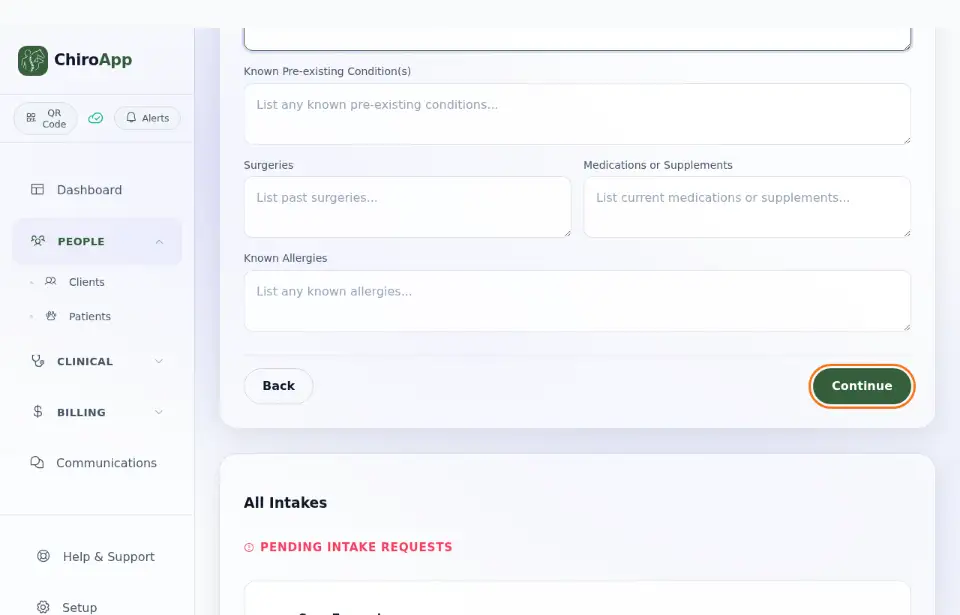
Under Visit & health, describe the Current Condition / Chief Complaint. The other boxes are optional. Press Continue.
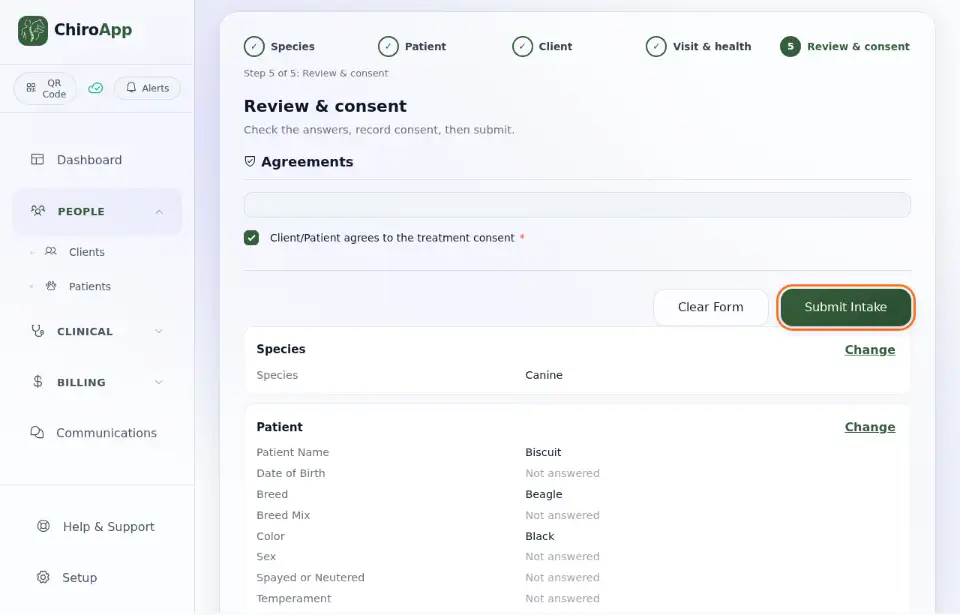
Check the answers. To fix one, press Change next to that part. Tick Client/Patient agrees to the treatment consent, then press Submit Intake.
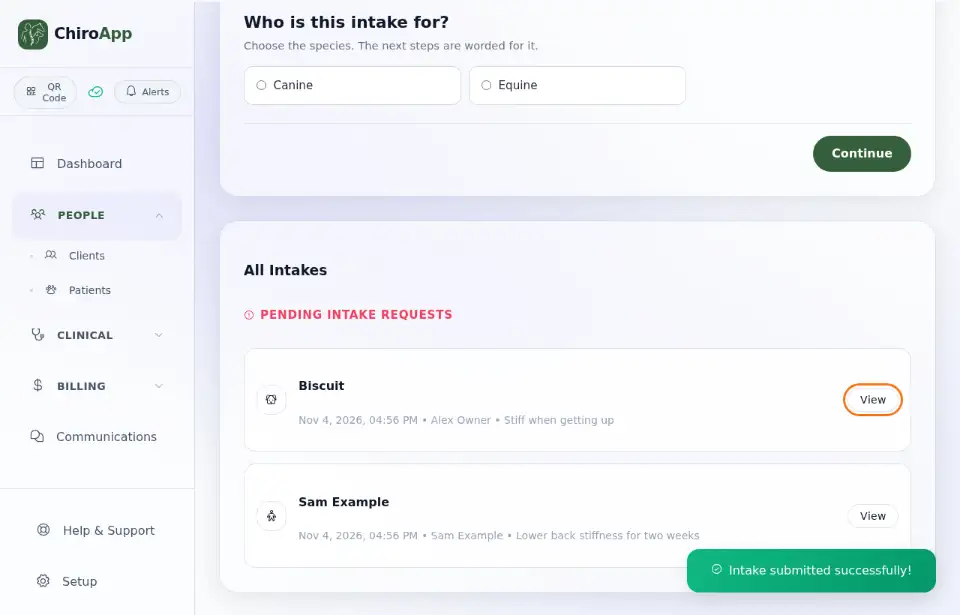
ChiroApp shows Intake submitted successfully! and the new intake appears under Pending Intake Requests. The patient and client are saved now. Press View to see the intake, then View Patient Profile to open the patient.
Every field marked with a red star must be filled in before Continue works; ChiroApp tells you which ones are missing.