Help Center Getting started
Choose a plan before your trial ends
See your trial, compare plans and subscribe so nothing stops when the trial ends.
New practices start with a free trial with every feature unlocked. Setup shows your plan and how many trial days are left.
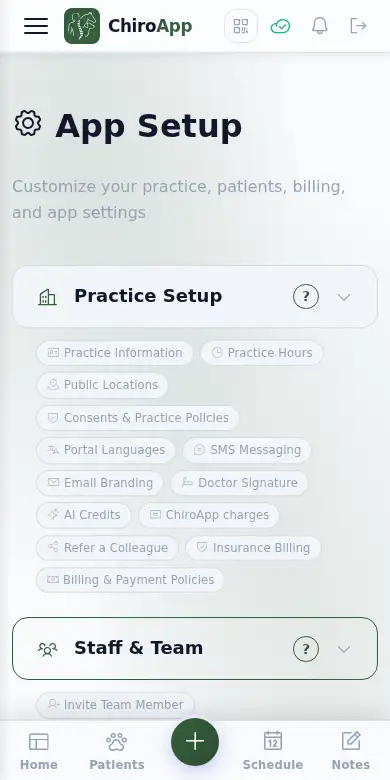
In the menu, open Setup.
On a phone On a phone, tap the menu button (three lines) at the top left first. Setup is near the bottom of the menu.
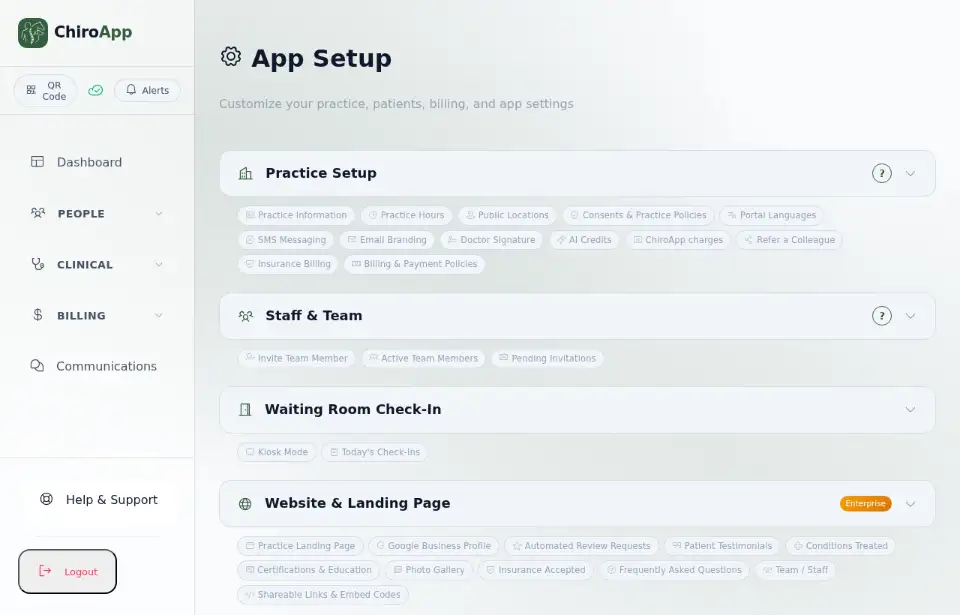
Open Account & Settings. Subscription & Plan shows your plan, Free Trial, how many days remain and the date the trial ends, and your Notes this month.
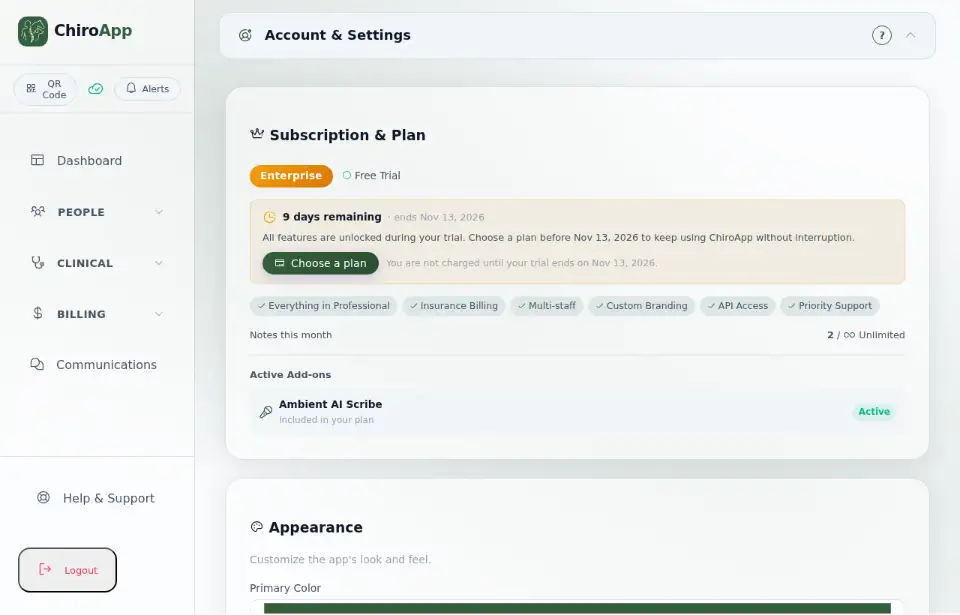
The account owner sees Choose a plan here. It opens a list of Choose Starter, Choose Professional and Choose Enterprise. Your trial keeps running, and your card is first charged when the trial ends. If you have a code, type it into Promo code (optional) first.
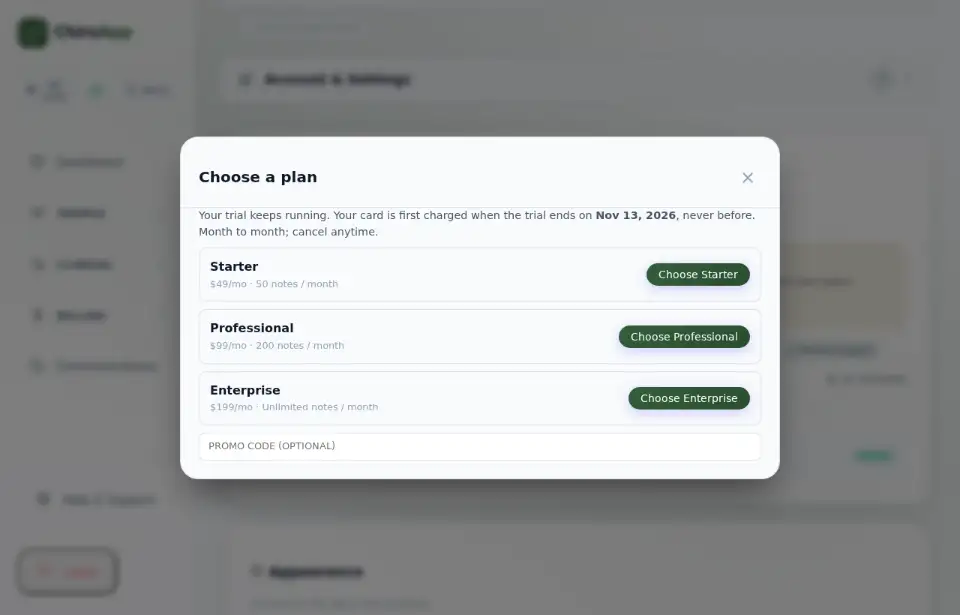
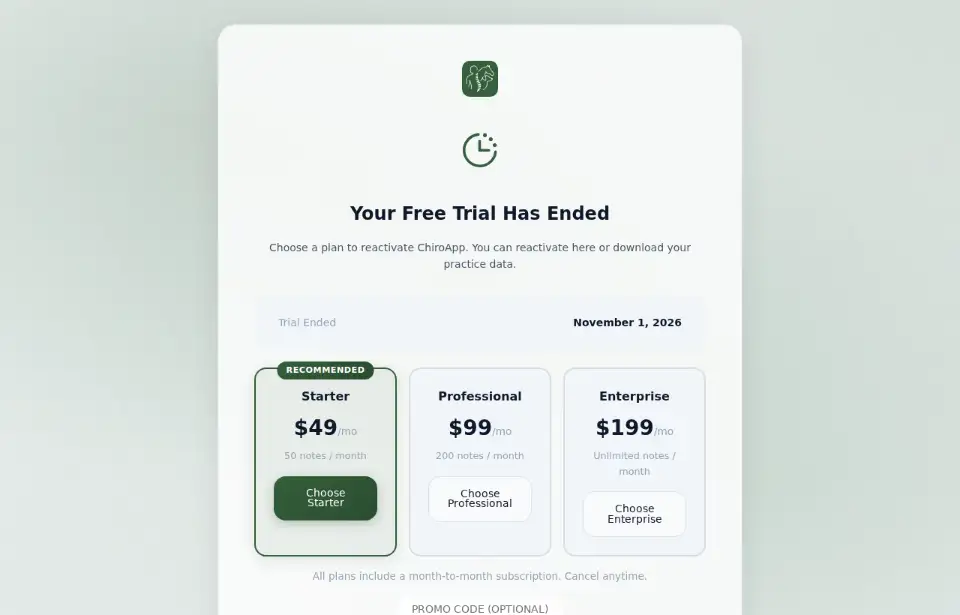
If a trial ends before a plan is chosen, signing in shows Your Free Trial Has Ended, with the Trial Ended date, so your records are kept while you decide. Press Choose Starter, Choose Professional or Choose Enterprise for the plan you want (all plans are month to month, and you can cancel any time). If you have a code, type it into Promo code (optional) first. Download My Data saves a copy of your records.