Help Center Getting started
Add staff and providers
Invite your staff and associate doctors, and choose what each person can do.
Each person who uses ChiroApp has their own sign-in. Invite them from Setup > Staff & Team; they choose their own password from the invitation link.
In the menu, open Setup.
On a phone On a phone, tap the menu button (three lines) at the top left first; Setup is near the bottom of the menu.
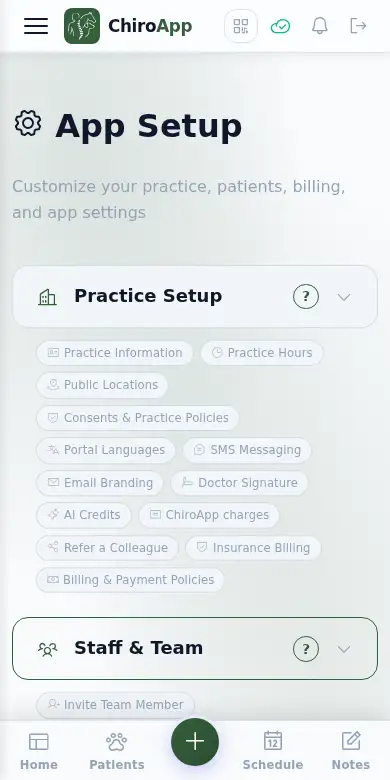
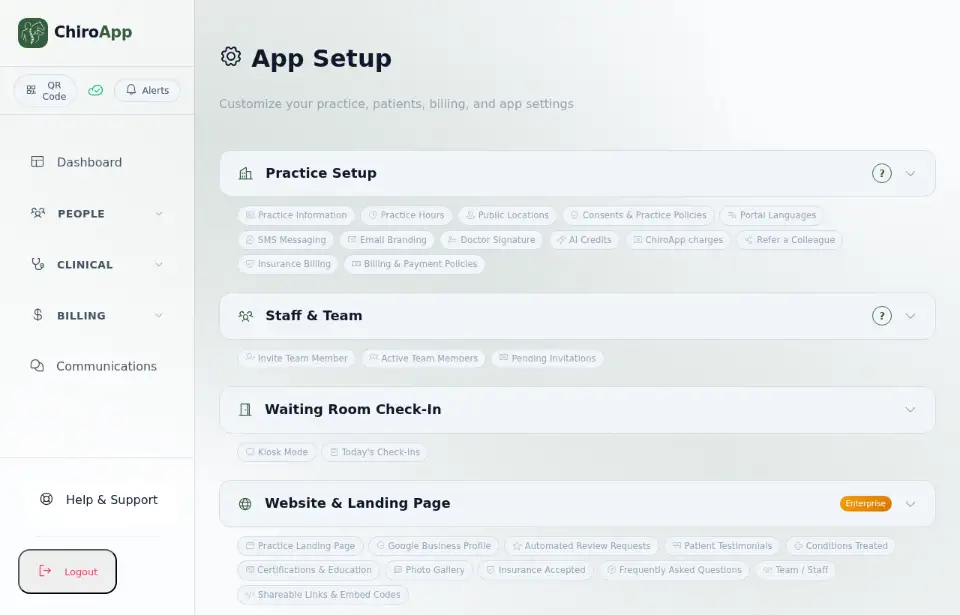
Press Staff & Team to open it.
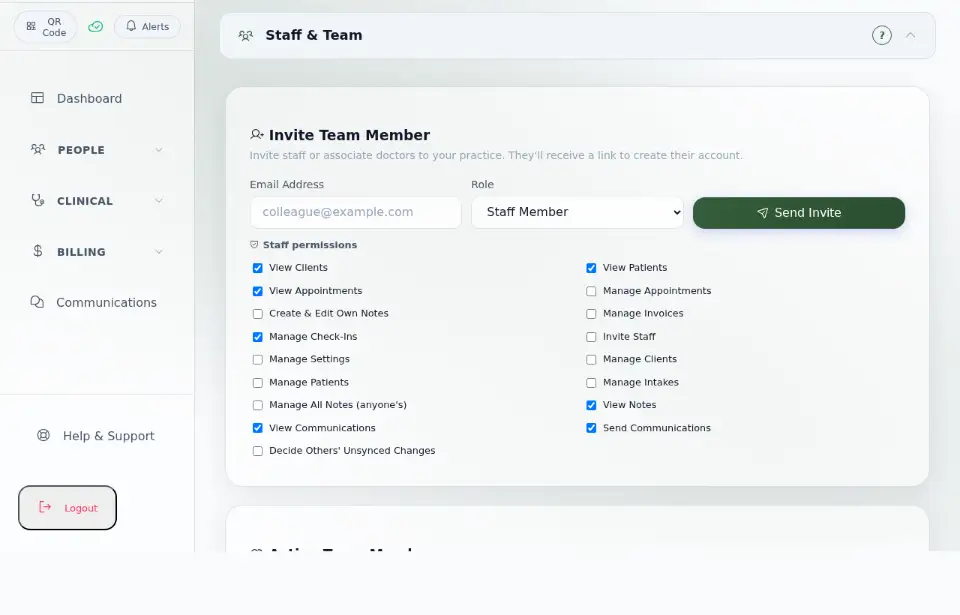
Under Invite Team Member, type the person's Email Address and choose their Role: Staff Member or Associate Doctor. For a staff member, tick what they may do under Staff permissions (for example View Clients, Manage Appointments, Manage Invoices). Press Send Invite.
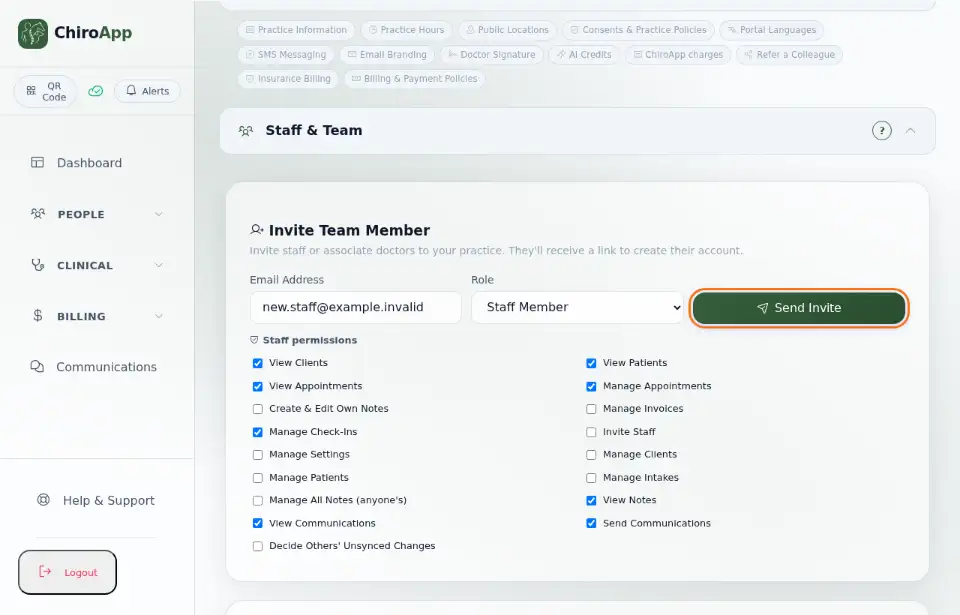
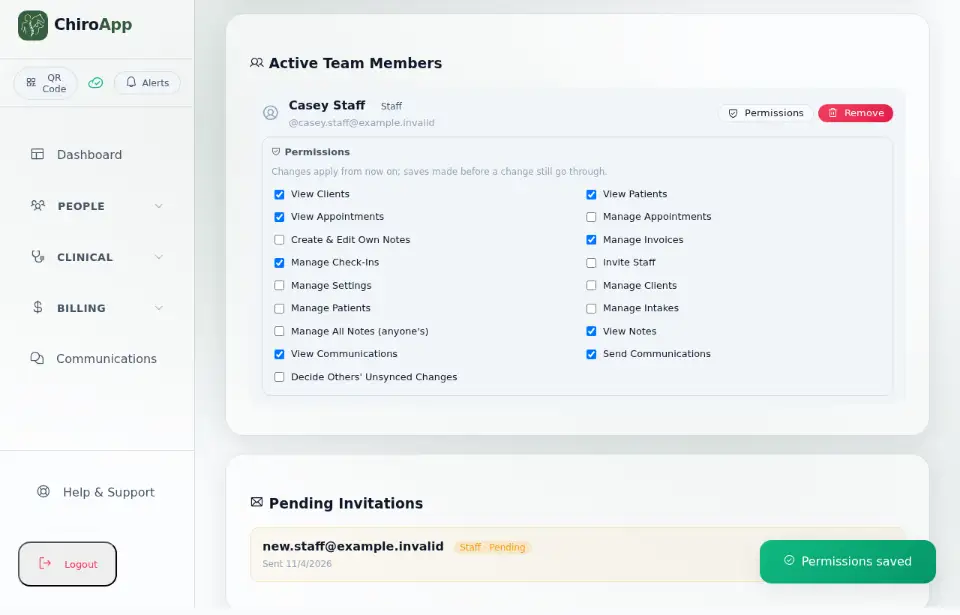
The invitation is listed under Pending Invitations until the person accepts it. ChiroApp emails them a link to create their account; if the email cannot be sent, ChiroApp shows the link on screen so you can send it yourself. Press Revoke to cancel an invitation.
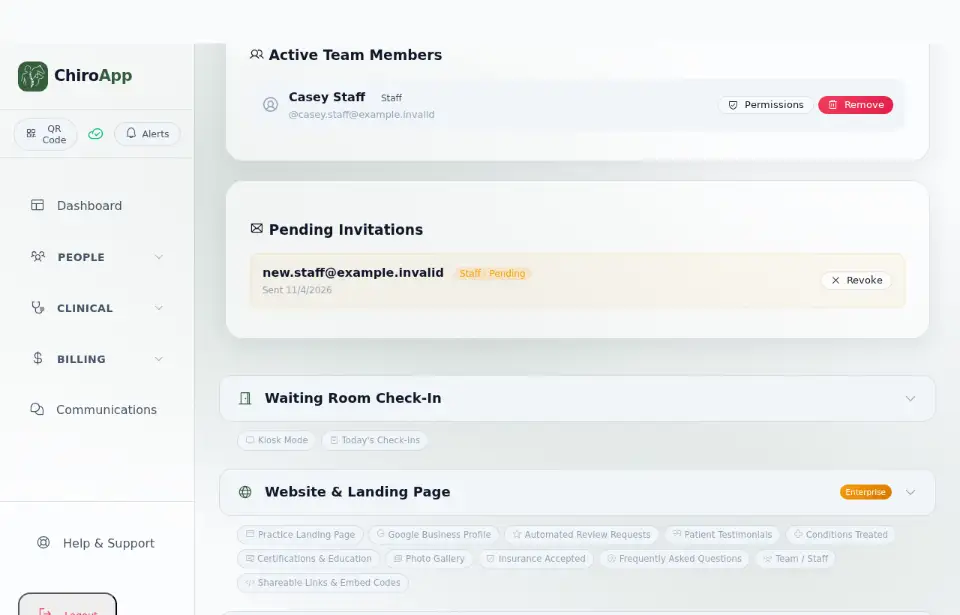
Once they have created their account, they are listed under Active Team Members. Press Permissions next to their name and tick or untick what they may do: each change is saved straight away. Remove takes away their access.